Analytics
See what your partner program earns in OpenPromoter. The dashboard, analytics with funnel and cohorts, visitor sources and countries, each partner's traffic, referred customers, report emails and CSV export.
OpenPromoter shows where partner revenue comes from, how visitors convert and how long customers stay. The Dashboard gives the headline numbers and what needs you. Analytics goes deeper with the funnel, partner quality, cohorts and visitor sources.
The dashboard
Open Dashboard to see the program at a glance. Pick 7d, 30d, 90d or 12m at the top to change the period.
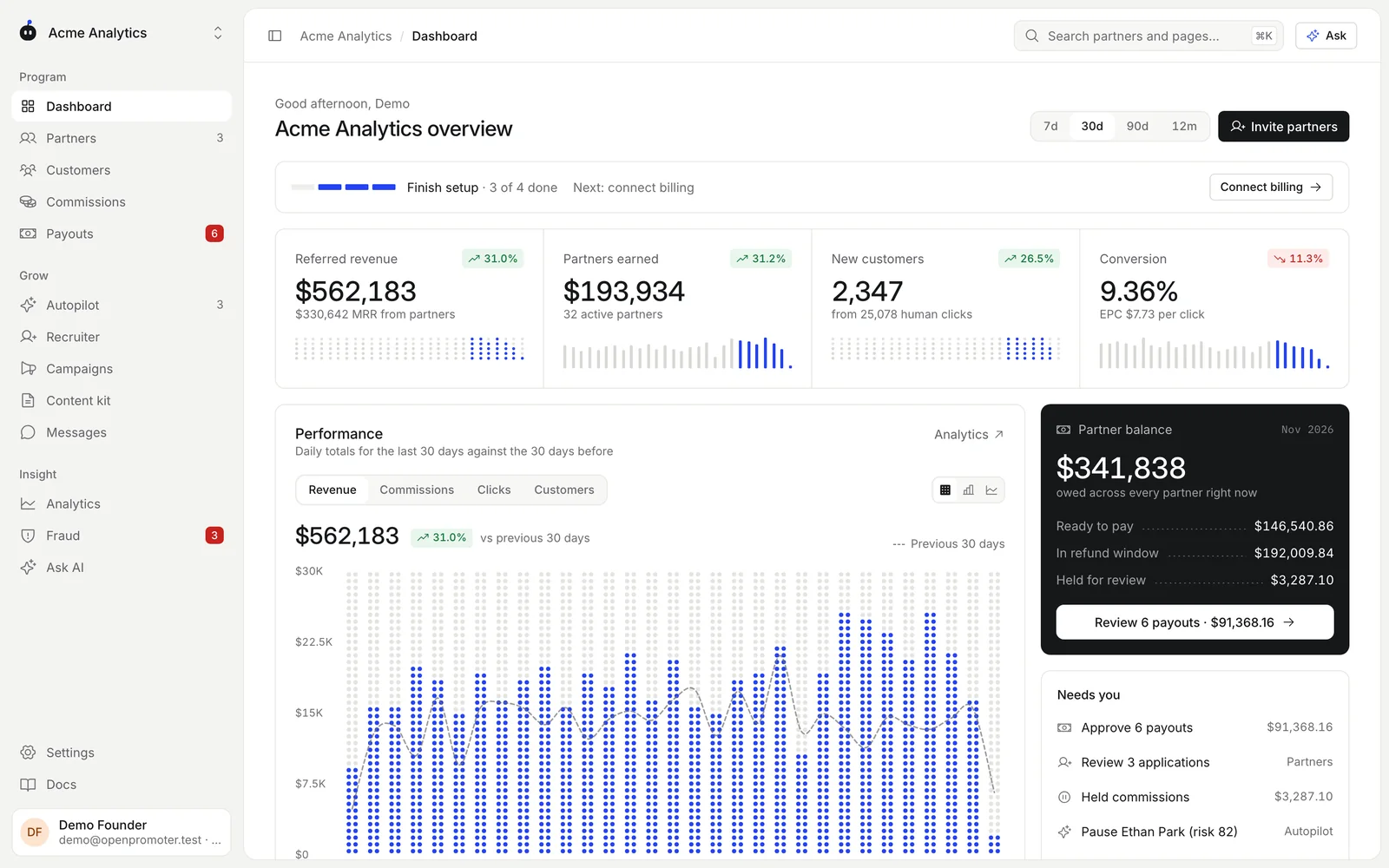
| Card | What it shows |
|---|---|
| Referred revenue | Revenue from referred customers and the MRR partners brought |
| Partners earned | Commissions earned and the number of active partners |
| New customers | Customers partners brought and the human clicks behind them |
| Conversion | The share of clicks that became customers and the EPC (commission per click) |
| Performance | Daily revenue, commissions, clicks or customers against the previous period |
| Partner balance | What you owe: ready to pay, in the refund window and held for review |
| Needs you | Payouts to approve, applications to review, held commissions and Autopilot suggestions |
Each figure shows its change against the period before. Until setup is done, a Finish setup bar sits at the top. See Quick start.
How to read the analytics page
- Open Analytics.
- Pick 7d, 30d, 90d or 12m.
- Click Export to download the daily figures for that period as CSV.
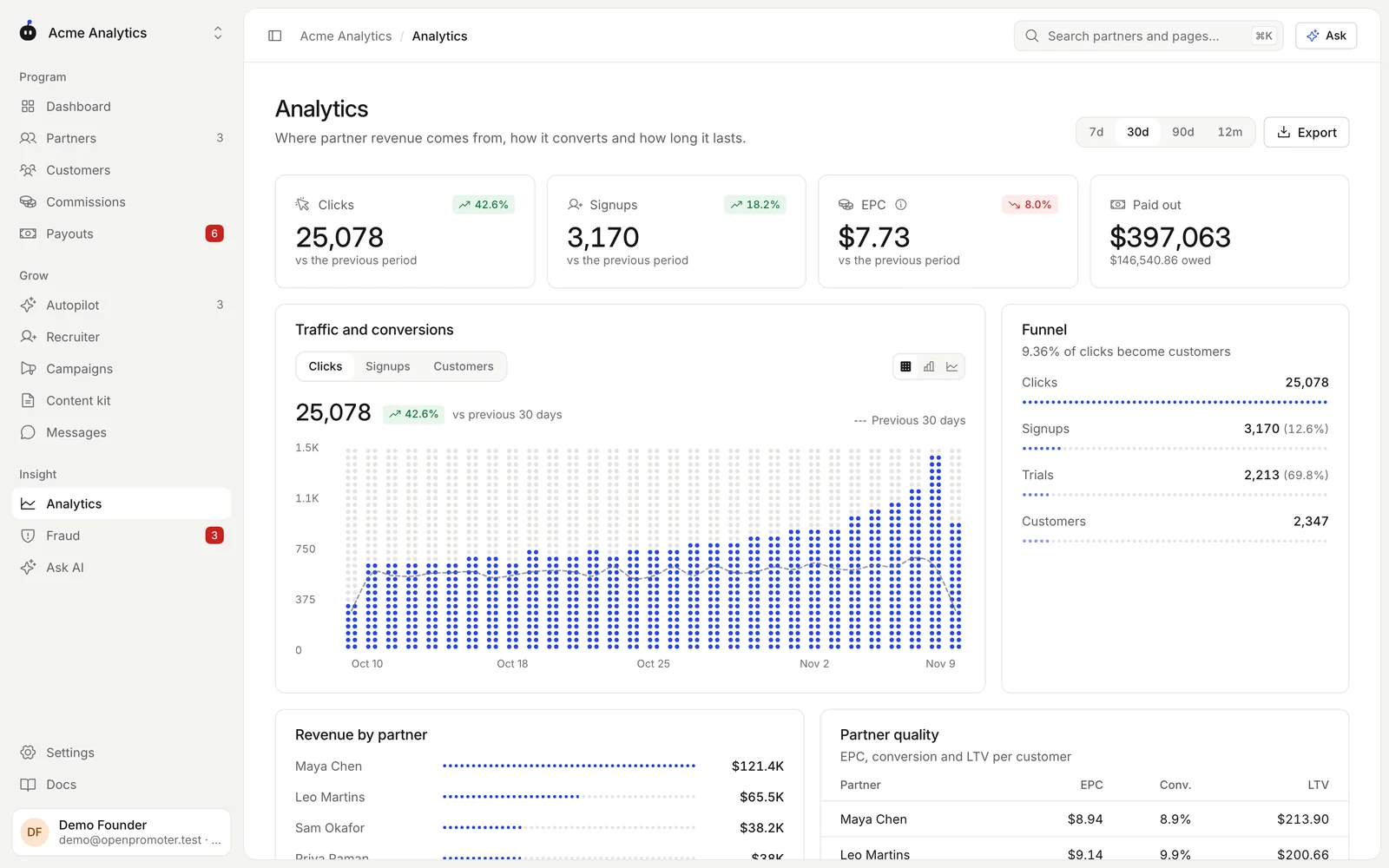
| Section | What it shows |
|---|---|
| The four totals at the top | Totals for the period against the period before. Paid out also shows what is owed. |
| Traffic and conversions | Daily clicks, signups or customers against the previous period |
| Funnel | Clicks to signups to trials to customers with the rate at each step |
| Revenue by partner | Your partners ranked by referred revenue |
| Partner quality | EPC, conversion rate and lifetime value per customer for each partner |
| Top sources and links | Where the clicks that became customers came from |
| Cohorts | Customers by month of first payment, how many still pay and their revenue |
Visitors
The Visitors section at the bottom of Analytics shows where people who clicked partner links came from.
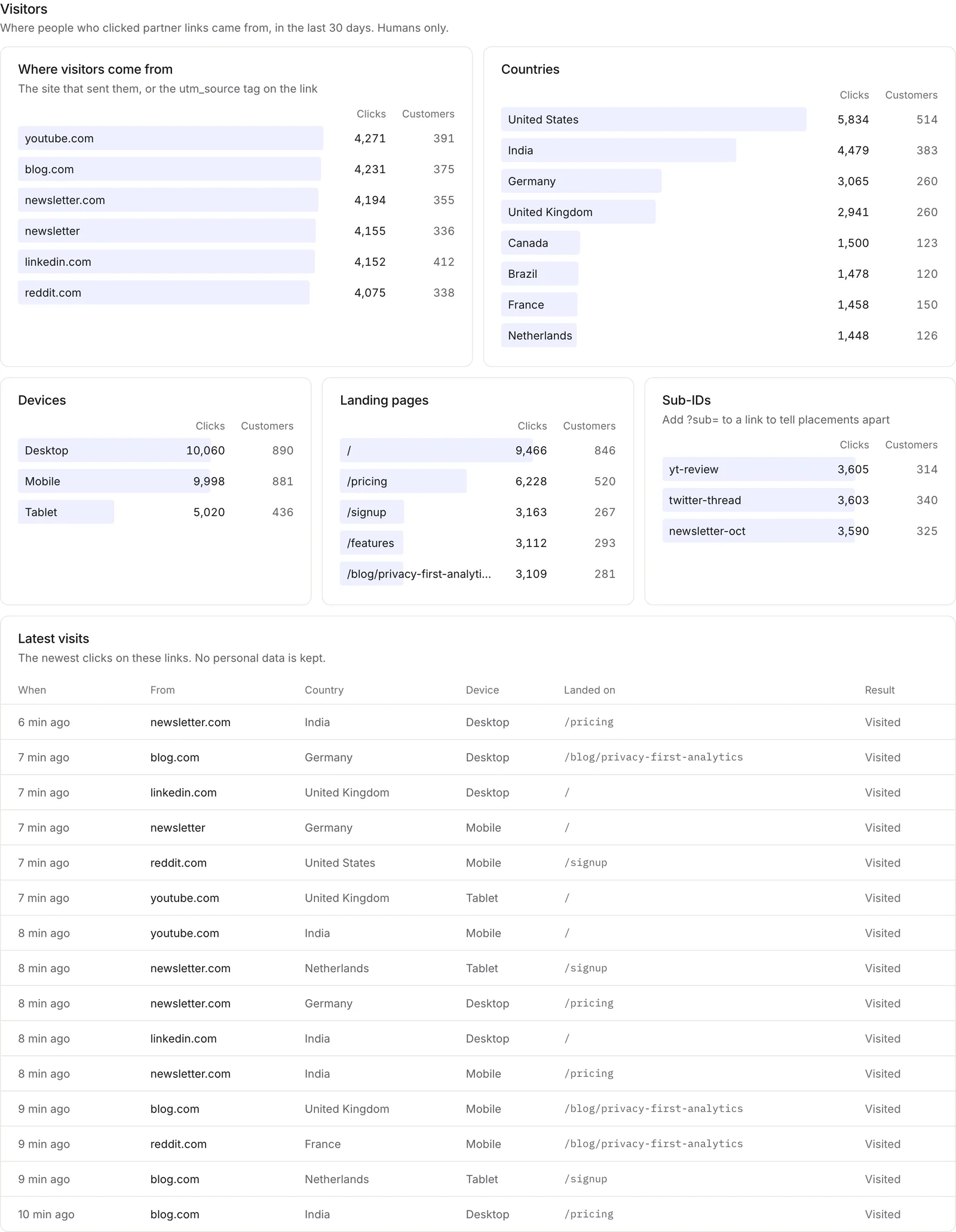
| Panel | What it shows |
|---|---|
| Where visitors come from | The site that sent them, or the utm_source tag on the link. Visits with neither are Direct. |
| Countries | Clicks and customers by country |
| Devices | Desktop, mobile and tablet |
| Landing pages | The page on your site each visit landed on |
| Sub-IDs | Clicks and customers for each ?sub= value partners add to their links |
| Latest visits | The newest clicks with source, country, device, page and whether the visit became a customer |
Each panel shows clicks and the customers they became. No personal data is kept for a visit.
Visitors covers up to 90 days. With 12m picked it shows the last 90 days.
A partner's traffic
Open a partner from Partners and scroll to Traffic. It shows the same panels for that partner alone over the last 30 days.
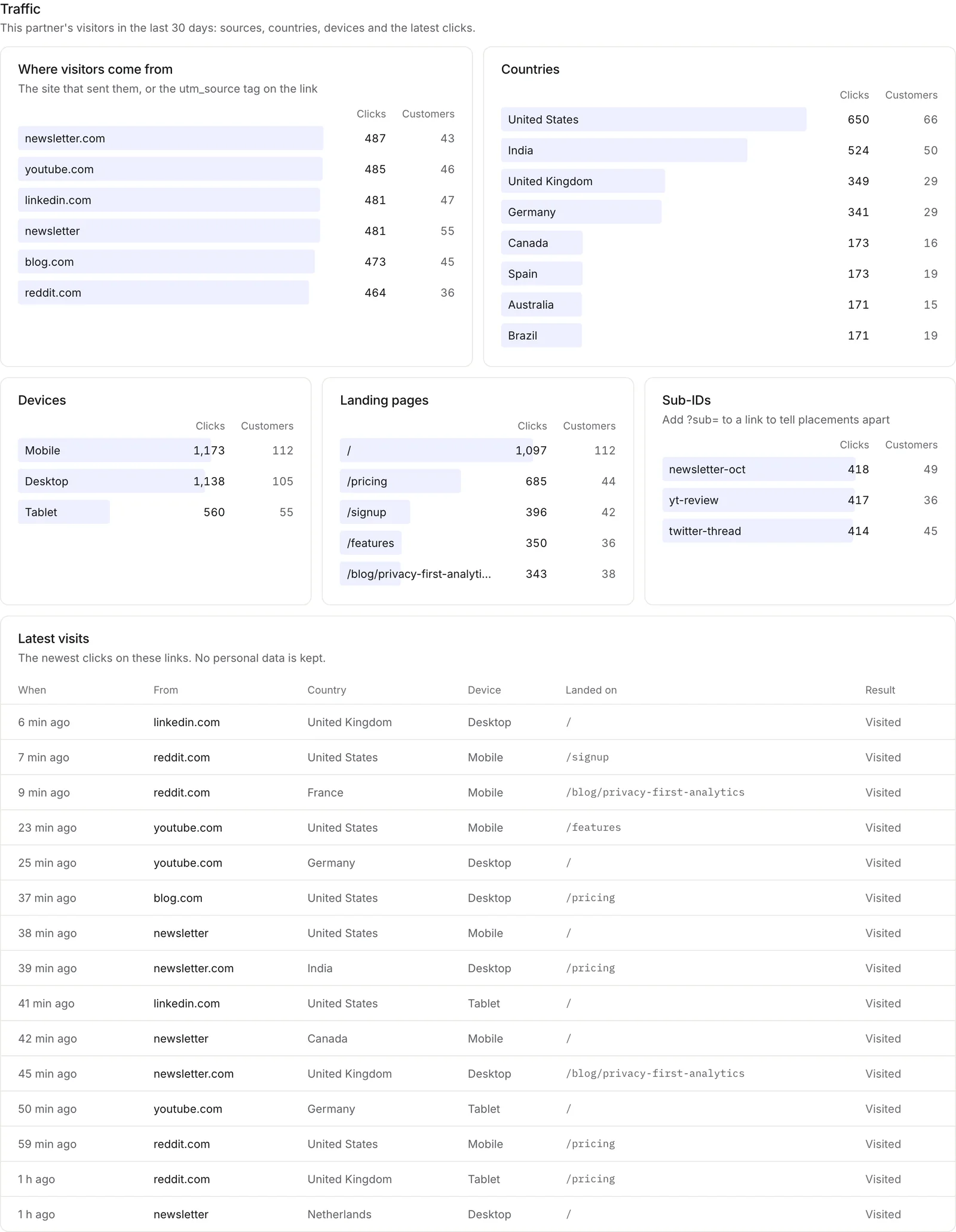
Partners see their own version on the Traffic page of their portal. See Partner guide.
Customers
Open Customers to see every signup and customer your partners referred.
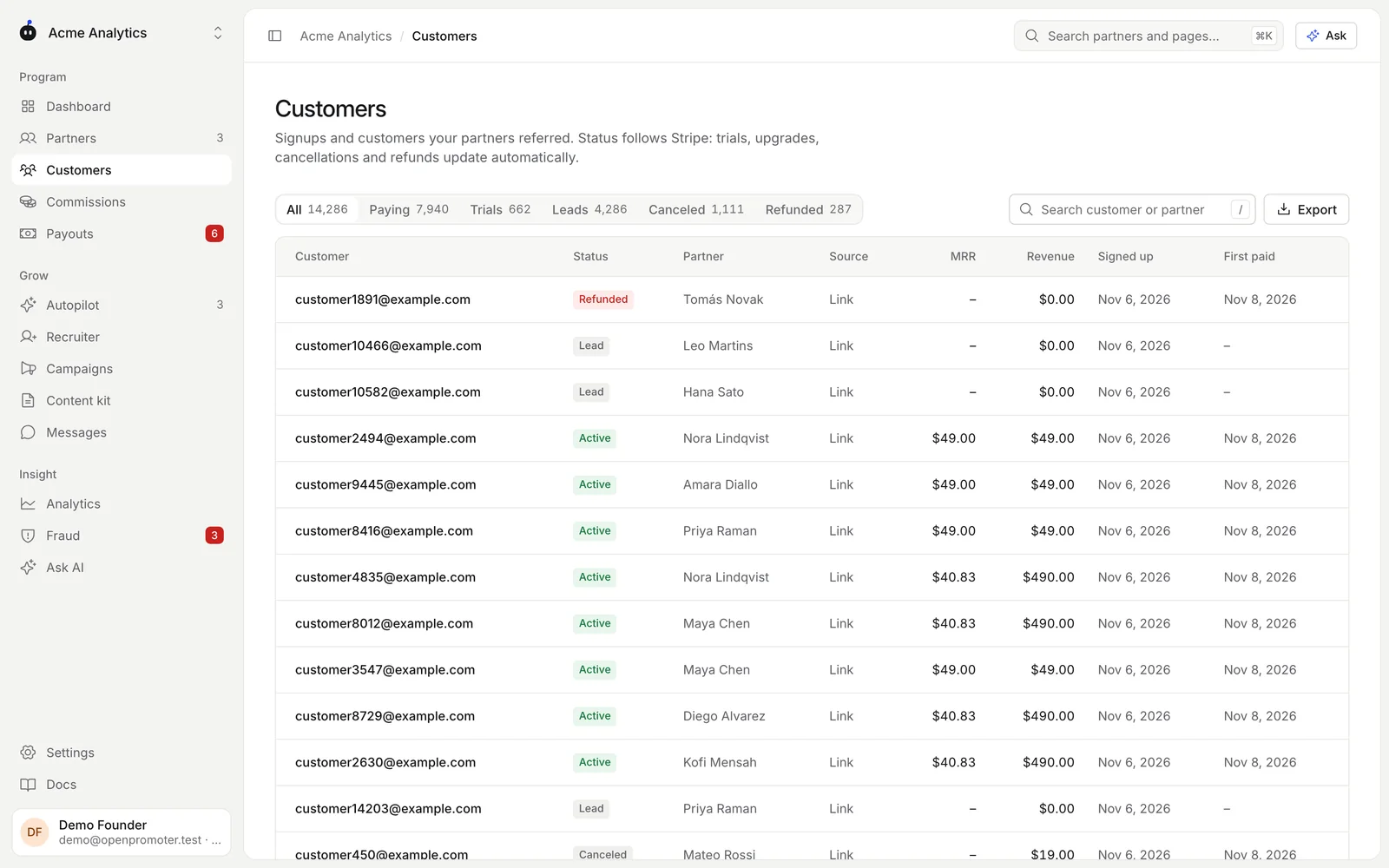
The tabs are All, Paying, Trials, Leads, Canceled and Refunded. Each row shows the customer, status, partner, source, MRR, revenue, signup date and first payment date.
Status follows your billing provider. Trials, upgrades, cancellations and refunds update by themselves.
Search by customer or partner. Click Export to download the list you are looking at as CSV.
Report emails
At the bottom of Analytics, the Scheduled email report card sends you a summary by email.
- Pick Weekly or Monthly.
- Click Save. Pick Off to stop it.
A weekly email covers the last 7 days and compares them with the 7 before. A monthly email does the same for 30 days.
Each email adds MRR from partners, what you owe, your top 3 partners and next steps such as payouts to approve. Each teammate sets their own report, and a teammate removed from the workspace stops getting it.
Search and shortcuts
Press Cmd K (Ctrl K on Windows) or click the search box at the top to open the command palette.
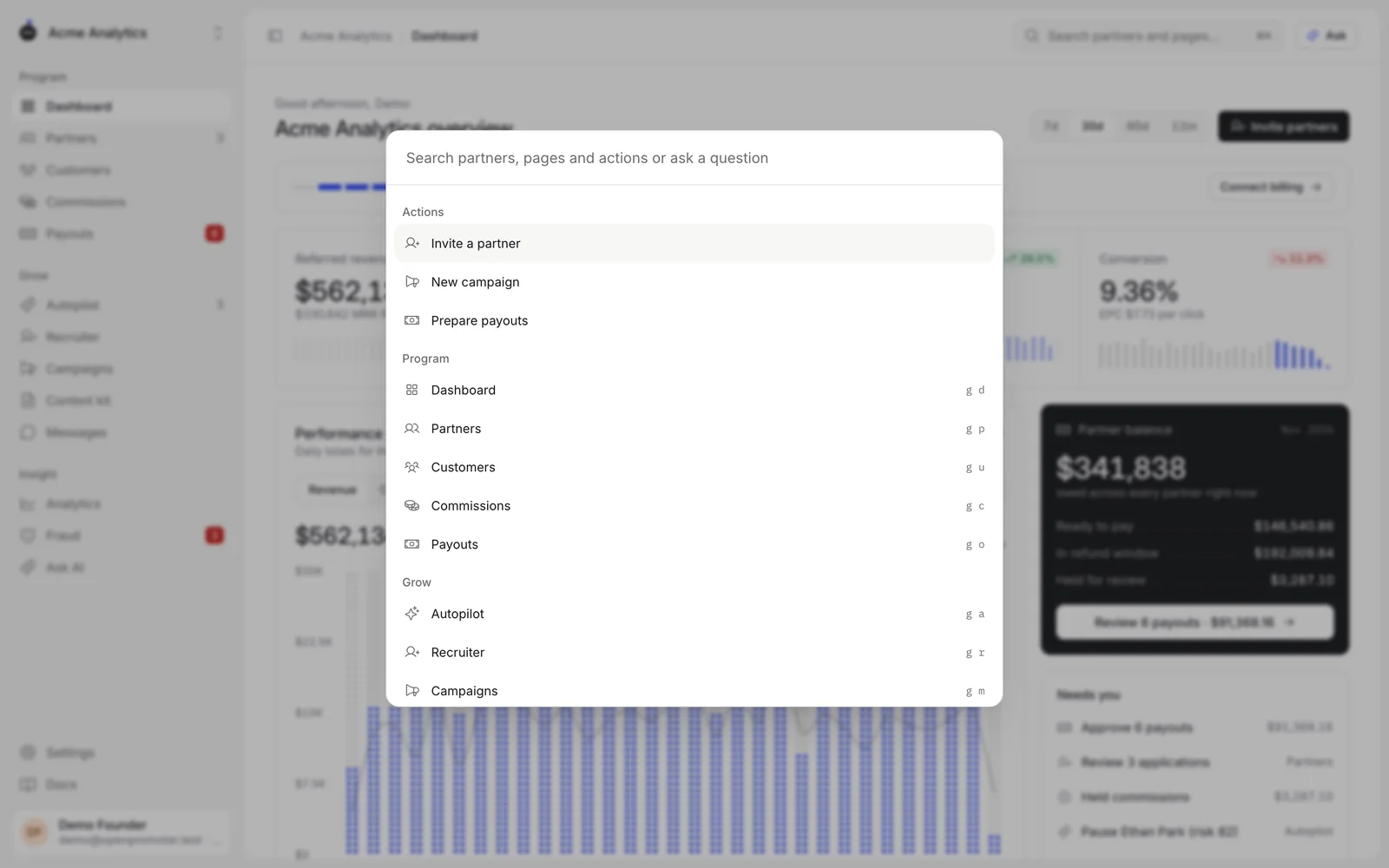
- Jump to any page or partner by typing its name.
- Run an action: Invite a partner, New campaign or Prepare payouts.
- Type a question and pick Ask to send it to Ask AI.
- Use two-key shortcuts such as
g dfor the dashboard andg pfor partners. The palette lists them next to each page.
CSV exports
| Page | What you get |
|---|---|
| Partners | The partners on the open tab and search |
| Customers | The customers on the open tab and search |
| Commissions | The commission lines on the open tab and search |
| Payouts | Every payout. See Payouts. |
| Analytics | Daily figures for the chosen period |
| Settings > Audit log | The audit log |
Commission and payout exports need the owner, admin or finance role.
Good to know
- Bot clicks are kept for the fraud checks and left out of every chart.
- Test-mode sales carry a Test badge and stay out of payouts. See Stripe.
- A sale paid in another currency counts in your program's currency on every report. Paddle and Lemon Squeezy report that value themselves. Other sales use the European Central Bank's daily rate.
- Partners still earn and get paid in the currency the customer paid in.
- The API and the MCP server read the same numbers.
Next: Payouts