Team and access
Invite teammates with the right role and turn on two-factor authentication. Read the audit log, run several programs, import partners and export or delete your data.
Bring your team into OpenPromoter with one of four roles: owner, admin, finance or viewer. Everyone signs in with their own account, and two-factor authentication protects anyone who approves payouts. This page also covers the audit log, running several programs, importing partners and exporting or deleting your data.
How to invite a teammate
- Open Settings > Team.
- Under Invite a teammate, enter their email.
- Pick a role and click Send invite.
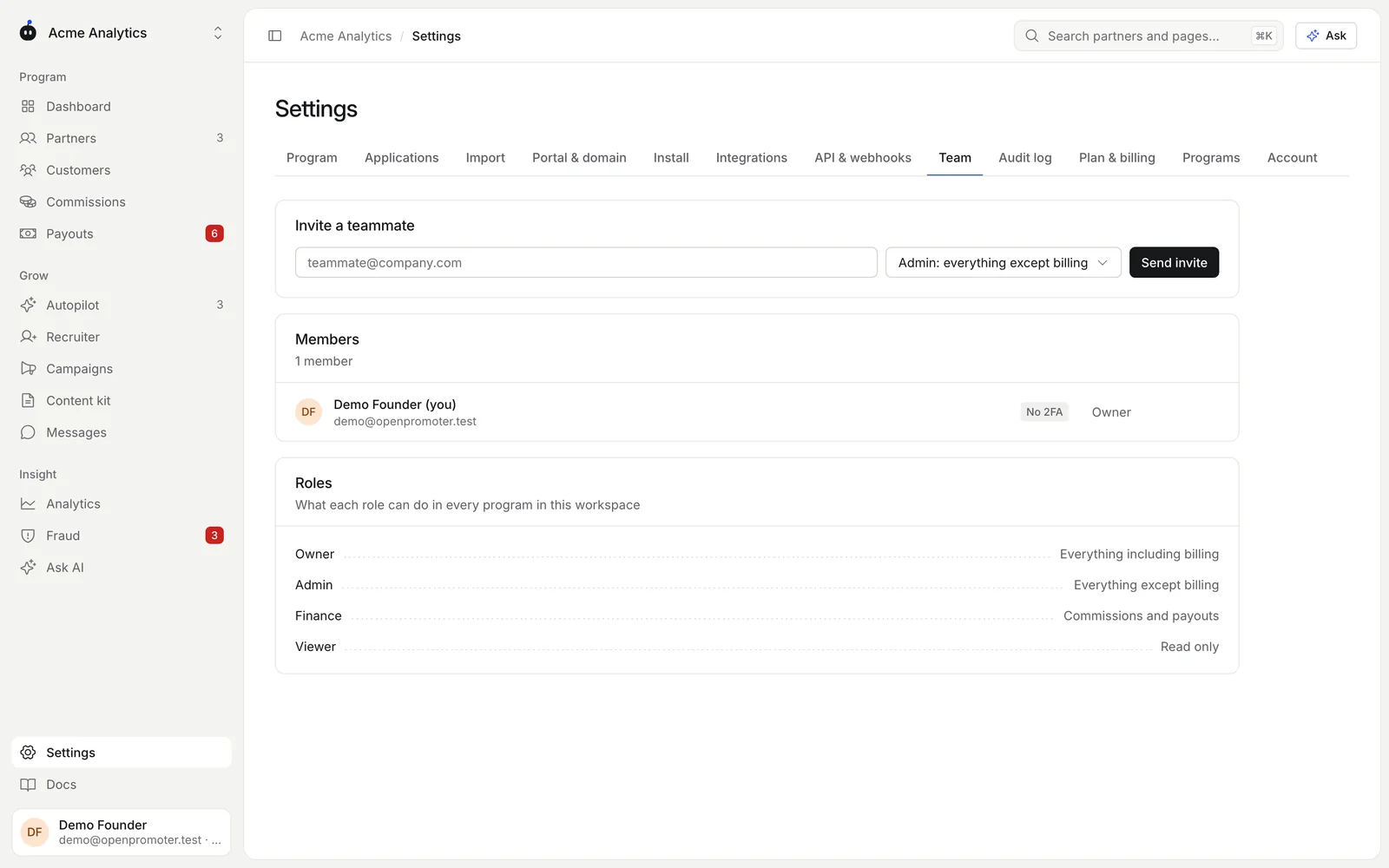
They get an email with a link to join. The invitation expires in 7 days. Pending invites show in Members as Invited.
Owners and admins can invite. Only an owner can add another owner.
Roles
A role applies to every program in the workspace.
| Role | Can do |
|---|---|
| Owner | Everything, including the plan and billing |
| Admin | Everything except billing: partners, program settings, money, team and API keys |
| Finance | Commissions and payouts with the right to approve payouts |
| Viewer | Read only |
To change a teammate's role, pick a new one from the menu next to their name. Pick Remove to take them out of the workspace.
Each member shows 2FA on or No 2FA. You can see who still needs to turn it on.
Two-factor authentication
- Open Settings > Account.
- Under Two-factor authentication, type your password in Confirm your password and click Set up 2FA.
- Scan the QR code with an authenticator app. Store the backup codes somewhere safe.
- Enter the 6-digit code and click Verify.
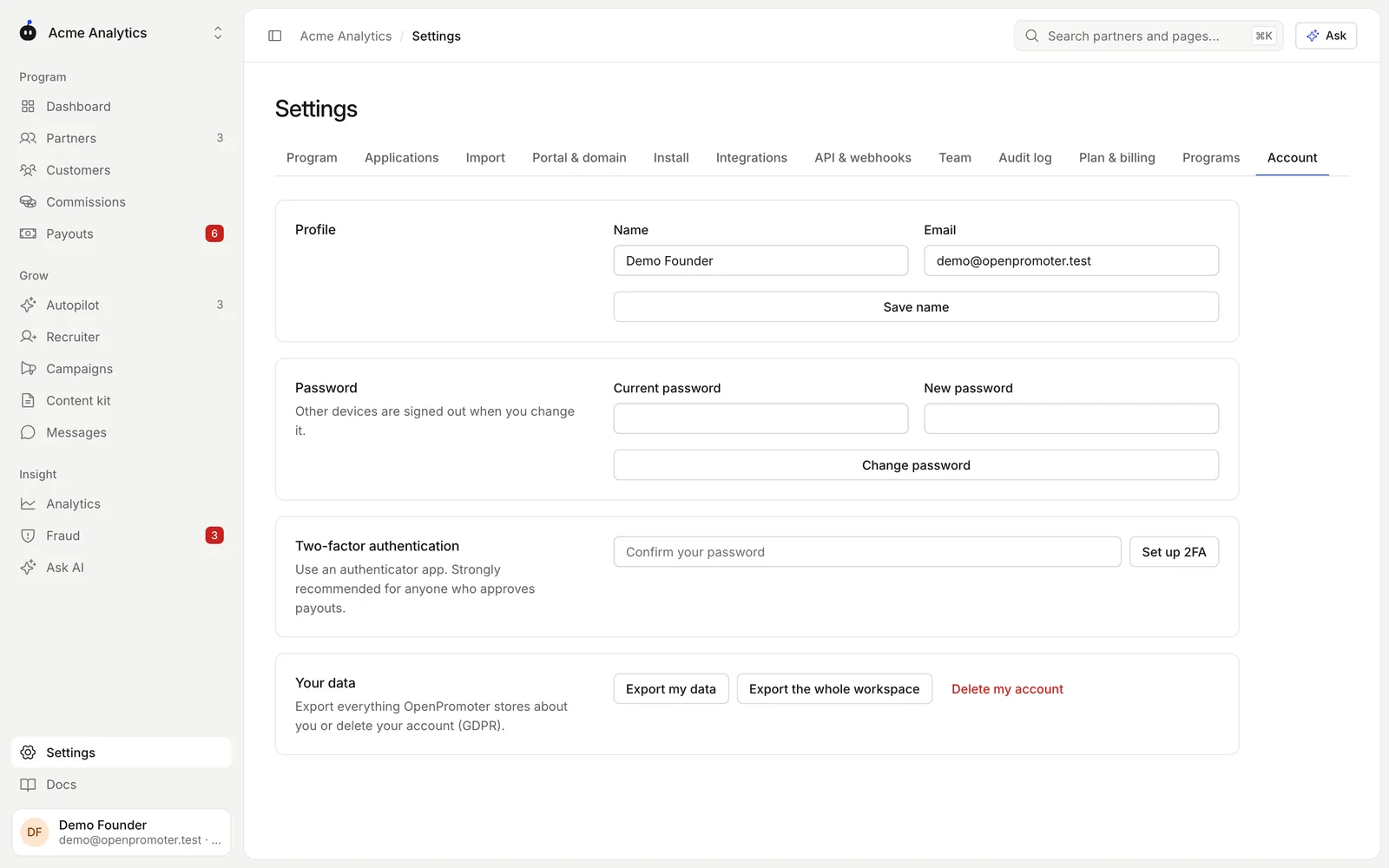
If you sign in with Google or GitHub, set a password first in the Password card. Two-factor setup asks for it.
Approving more than 1,000 in your program's currency at once needs two-factor turned on and a fresh code. Turn it on for everyone who approves payouts.
Changing your password signs you out on every other device.
Audit log
Open Settings > Audit log to see every change to money, partners, permissions and settings.
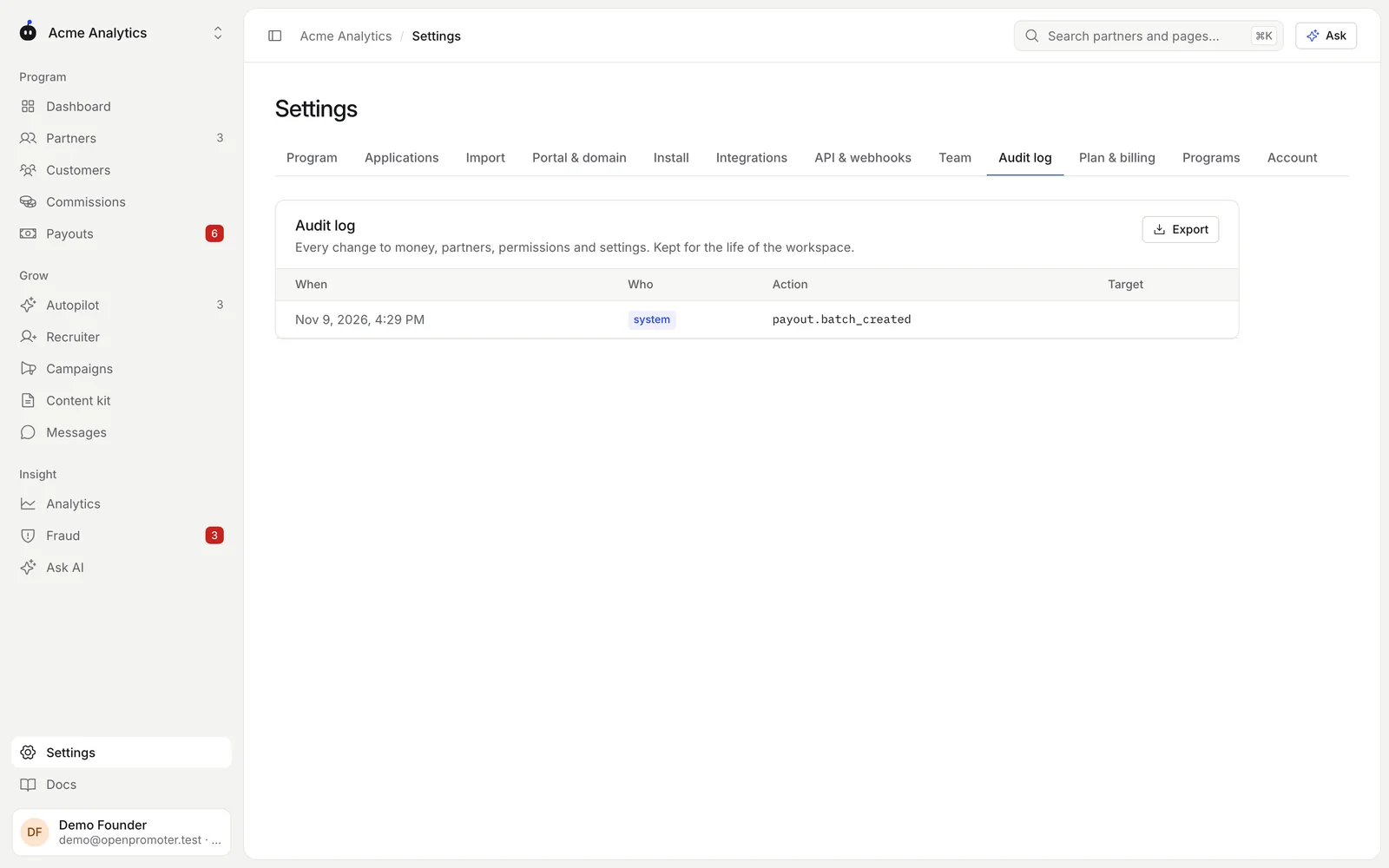
Each row shows when it happened, who did it and the action. Who is a person (user), an AI feature (ai) or OpenPromoter itself (system). The log is kept for the life of the workspace.
The page shows the latest 300 entries. Click Export to download up to the latest 50,000 entries as CSV.
More than one program
A workspace can run several programs, for example one per product or brand. Your team, plan and billing are shared across them.
- Open Settings > Programs.
- Under New program, enter the Website and an optional Name.
- Click Create program. OpenPromoter reads your site for the brand and opens the program design step.
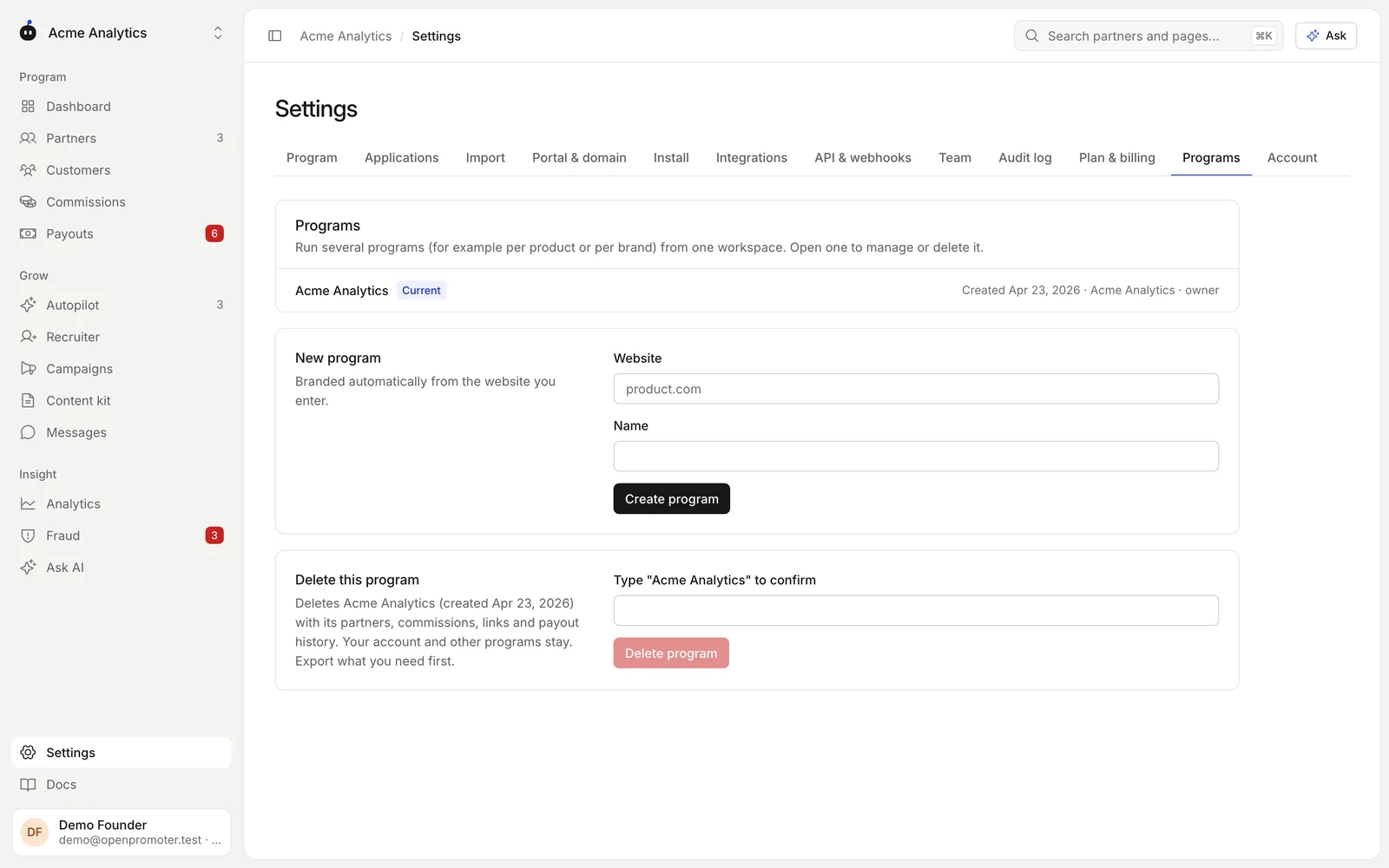
Switch programs from the program name at the top of the sidebar. Owners and admins can create programs.
To delete the program you are in, an owner types its name under Delete this program and clicks Delete program. Its partners, commissions, links and payout history are deleted. Your account and other programs stay.
Import partners from another tool
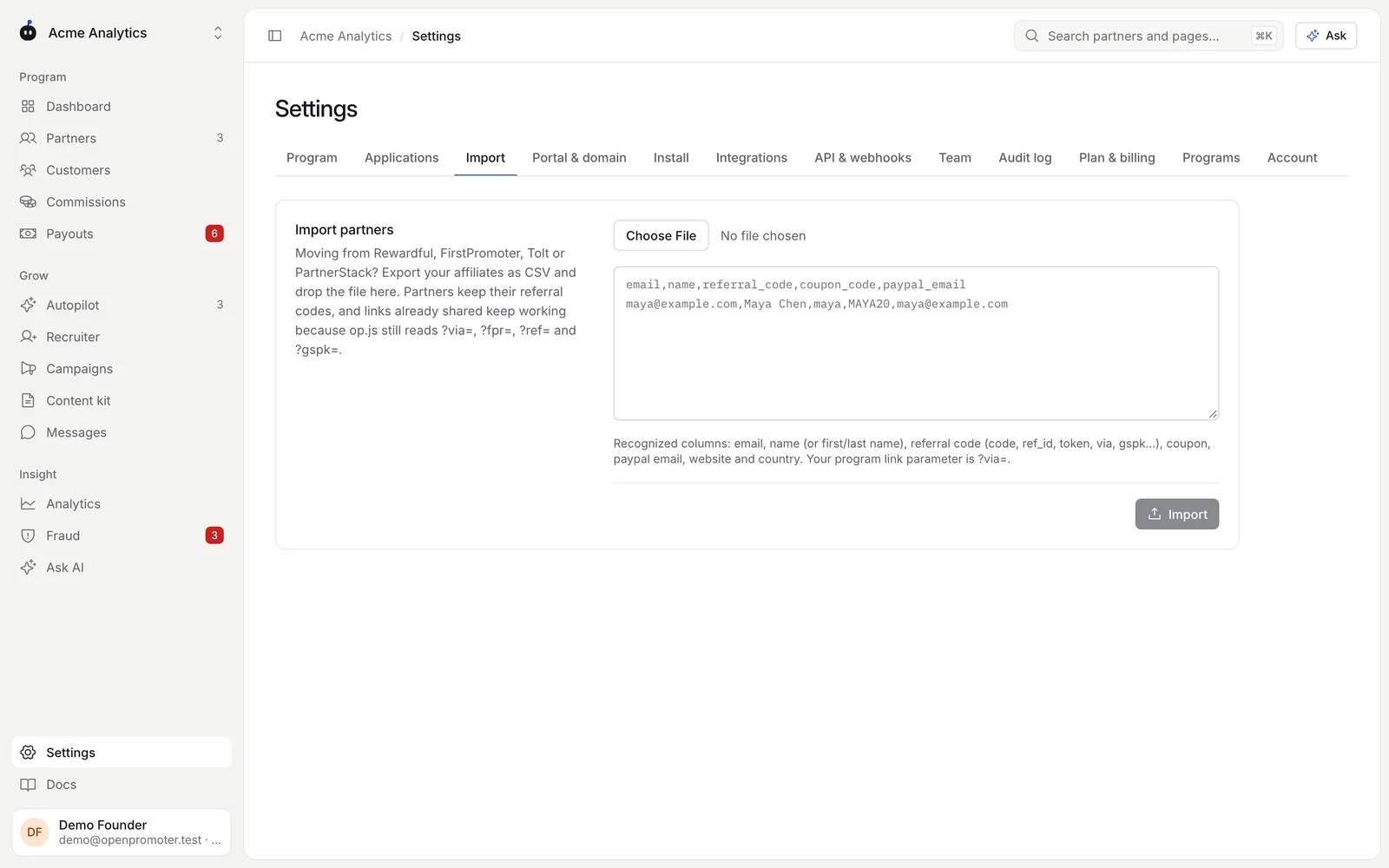
Moving from Rewardful, FirstPromoter, Tolt or PartnerStack? Bring your partners with a CSV.
- Export your affiliates as CSV from your old tool.
- Open Settings > Import.
- Click Choose File and pick the CSV, or paste its contents in the box.
- Click Import.
| Column | Also read as |
|---|---|
email |
partner_email, affiliate_email or promoter_email |
name |
full_name, partner_name, affiliate_name or first and last name columns |
| referral code | code, referral_code, ref_id, token, ref, via or gspk |
coupon |
coupon_code, promo_code or promotion_code |
paypal_email |
paypal or payout_email |
website |
url or site |
country |
country_code with two letters |
Only the email column is required. Imported partners are approved at once with a default link.
Imported partners get no email from OpenPromoter. Tell them about the move yourself.
Partners keep their referral codes. Links they already shared keep working because op.js reads ?via=, ?fpr=, ?ref= and ?gspk=. Rows with a missing email or one already in the program are skipped, and the result says how many.
Export or delete your data
The Your data card in Settings > Account has three buttons:
| Button | What it does |
|---|---|
| Export my data | Downloads everything OpenPromoter stores about you as JSON |
| Export the whole workspace | Downloads the workspace with every program as JSON. Owners only. |
| Delete my account | Deletes your login and every workspace you own alone with all its programs |
Deleting asks for your password, or for you to type DELETE if you have no password. It can't be undone.
A paid plan on a deleted workspace is canceled at once. If teammates share a workspace you own alone, make one of them an owner first. To remove only one program, use Settings > Programs.
Good to know
- API keys belong to one workspace and carry their own scopes. See API.
- Partners sign in to the partner portal with their own accounts. They never see your dashboard.
- For how accounts and data are protected, see Security.
Next: Security