Branding and the partner portal
Put your logo and brand color on the program page, application form, partner sign-in and partner portal. See what partners find in their portal once they join.
Your program page, application form, partner sign-in and partner portal all carry your brand. OpenPromoter reads your logo, color and description from your website when you create the program. Change them in Settings > Portal & domain whenever you rebrand or want a different headline for partners.
How to brand your program
- Open Settings > Portal & domain.
- In Partner portal branding, set the Brand color with the color picker or type a hex code such as
#4F46E5. - Enter a Logo URL. It must be a full
https://address of a PNG or JPG image. Gmail and Outlook can't show SVG in emails. - Write a Headline and a Description. They lead your program page.
- Check the Preview. It shows your name and logo beside a Join the program button in your color.
- Click Save. Then click Open program page to see the result.
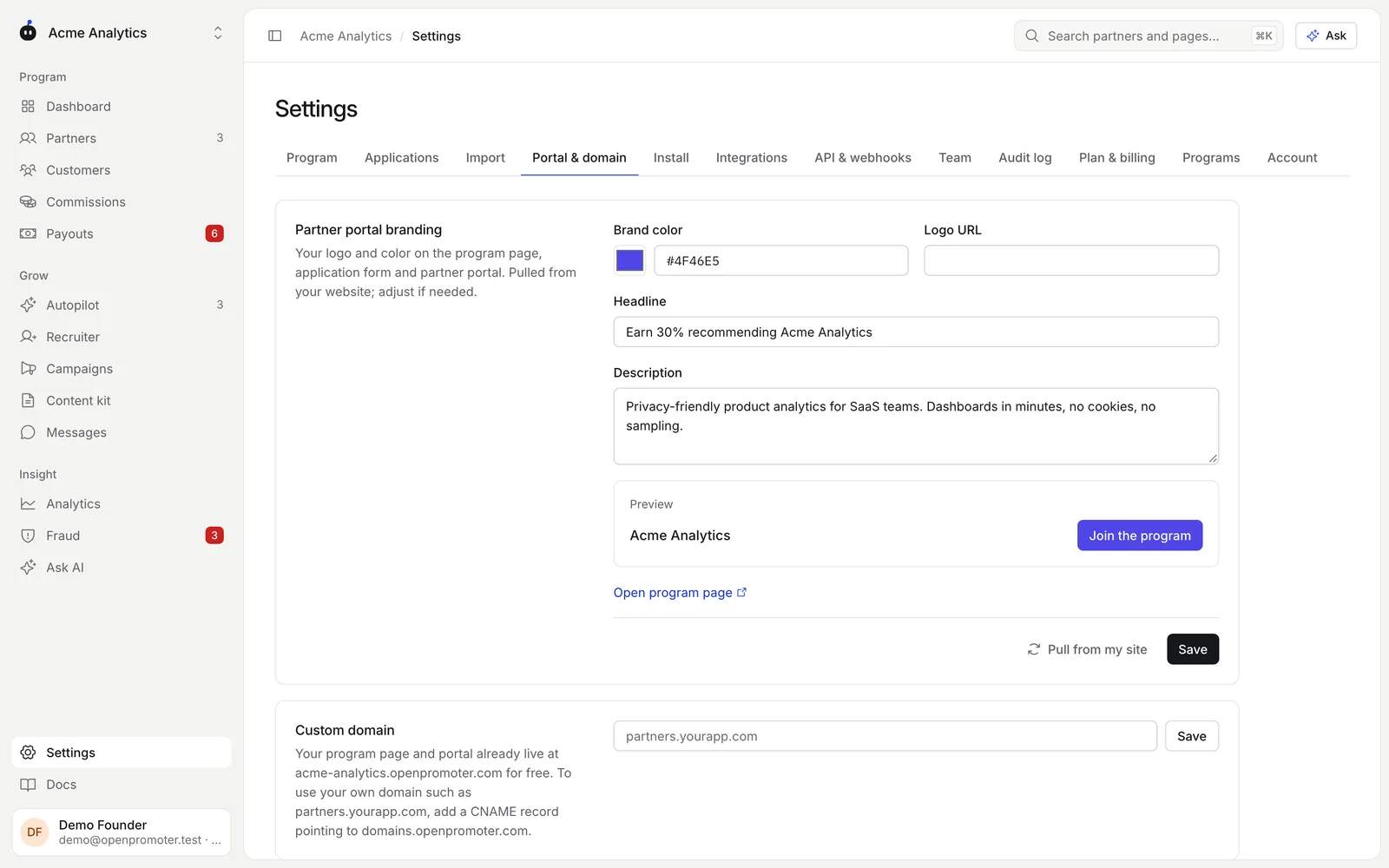
Click Pull from my site to read your color, logo and description from your website again. It keeps your headline.
Branding options
| Field | Where it shows | Limit |
|---|---|---|
| Brand color | Buttons and highlights on the program page, form, sign-in and portal | A hex color like #4F46E5 |
| Logo URL | Next to your program name on every partner page and email | A full https:// PNG or JPG address |
| Headline | The large title of your program page | 120 characters |
| Description | The paragraph under the headline | 600 characters |
New programs start with the headline "Earn by recommending" and your product name. Most founders put the rate in it, such as "Earn 30% recommending Acme Analytics".
Partner sign-in
Partners sign in from Partner login on your program page. The sign-in page shows your logo and name with your offer beside it. Partners can continue with Google or GitHub or use their email and password.
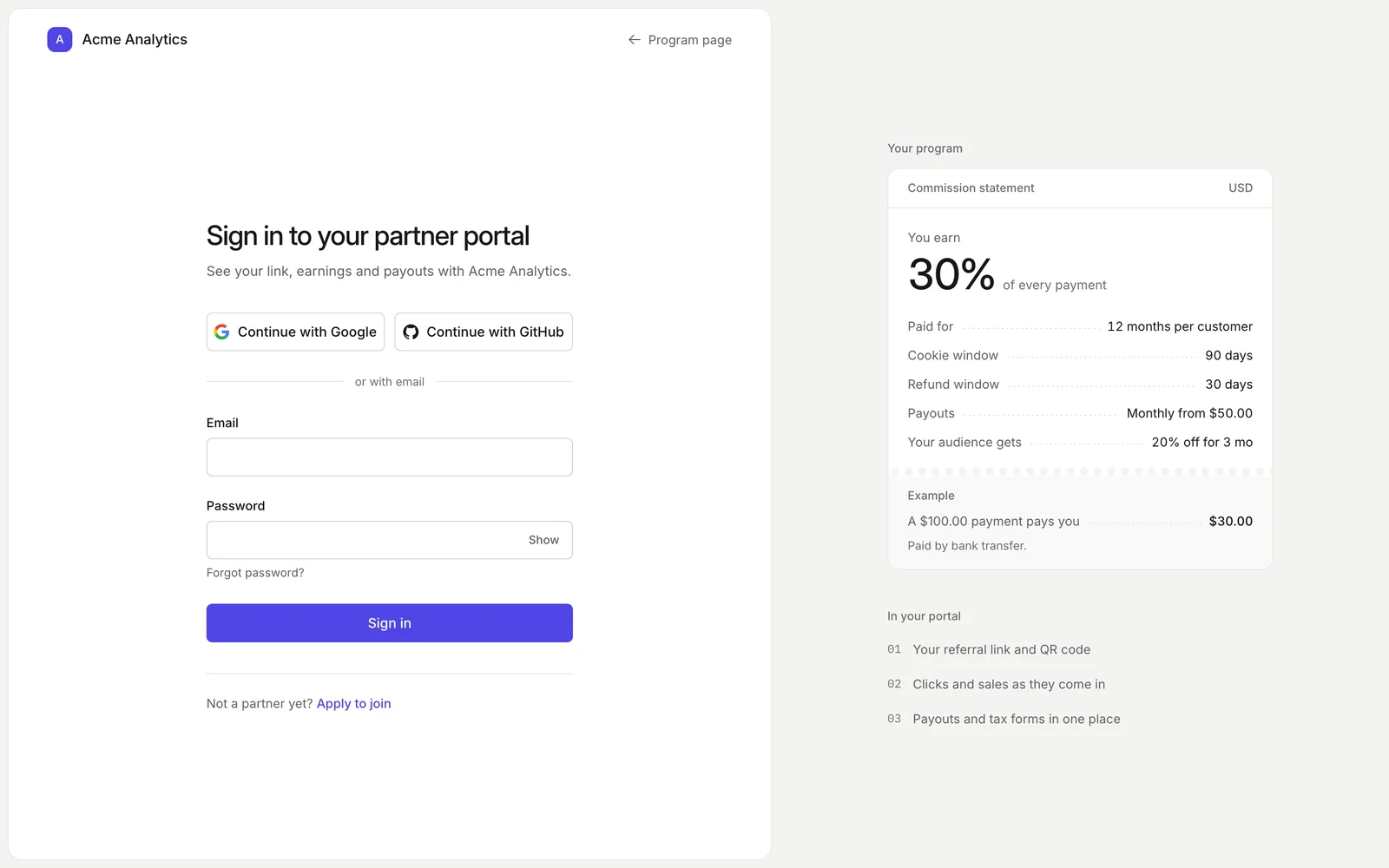
Apply to join at the bottom takes new people to your application form. On a custom domain, sign-in and password resets stay on your domain. See Custom domains.
The partner portal
Once approved, a partner lands in their portal. It opens at /portal on your program's address and uses your brand color.
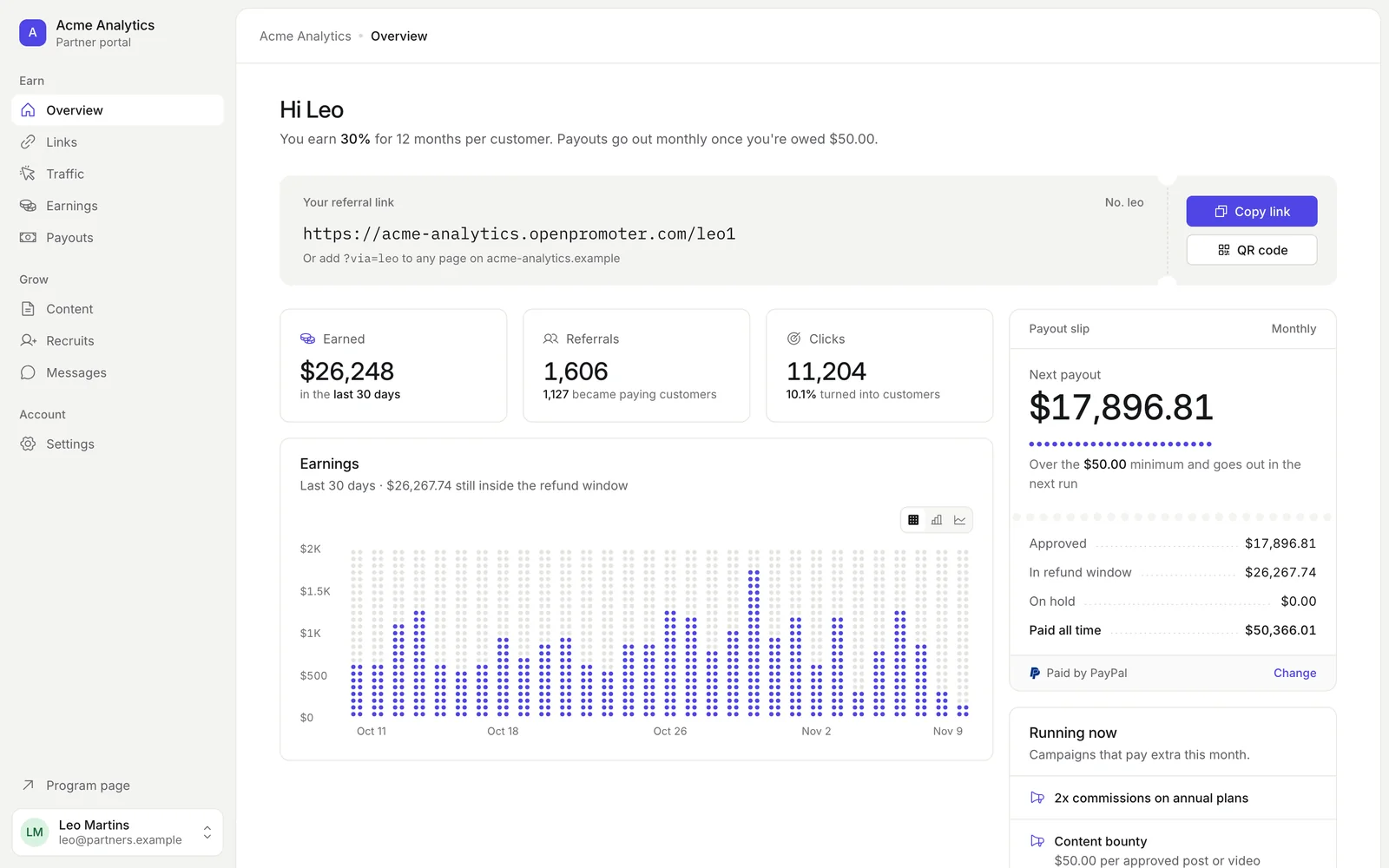
| Page | What partners do there |
|---|---|
| Overview | Copy their referral link, get its QR code and see earnings, referrals, clicks and their next payout |
| Links | Make links to any page on your site, add sub-IDs and see their coupon codes |
| Traffic | See clicks, visitors and customers by day, source and country |
| Earnings | Follow each commission through the refund window and download a statement |
| Payouts | Choose how they get paid and see past payouts with invoices |
| Content | Copy ready-made posts with their link filled in and submit posts for bounties |
| Recruits | Share a recruit link and see their recruits (only with a recruiter override) |
| Messages | Message your team and read your announcements |
| Settings | Add their tax details for payouts |
The overview also lists campaigns running now. A partner in several of your programs can switch between them from the menu at the bottom left.
Share the partner guide with your partners. It walks them through every page.
Good to know
- Brand color, logo and headline apply to every partner page at once. There is nothing to publish.
- The app you use as a founder keeps OpenPromoter's own colors. Only partner pages use your brand.
- Your program page and portal live at your free
<slug>.openpromoter.comaddress on Cloud, or on your own domain.
Next: Custom domains