Partners
Review applications, invite partners and manage each partner in OpenPromoter. Set a tier or custom rate, add links and coupon codes, pause or ban, message partners and export to CSV.
The Partners page lists everyone who promotes your product. Use it to approve new applications, invite people you know and open any partner to see their clicks, customers and earnings. From a partner's page you set their tier or a custom rate, add links and coupon codes and message them.
How to review applications
- Open Partners and click the Needs approval tab. The count shows how many applications wait for you.
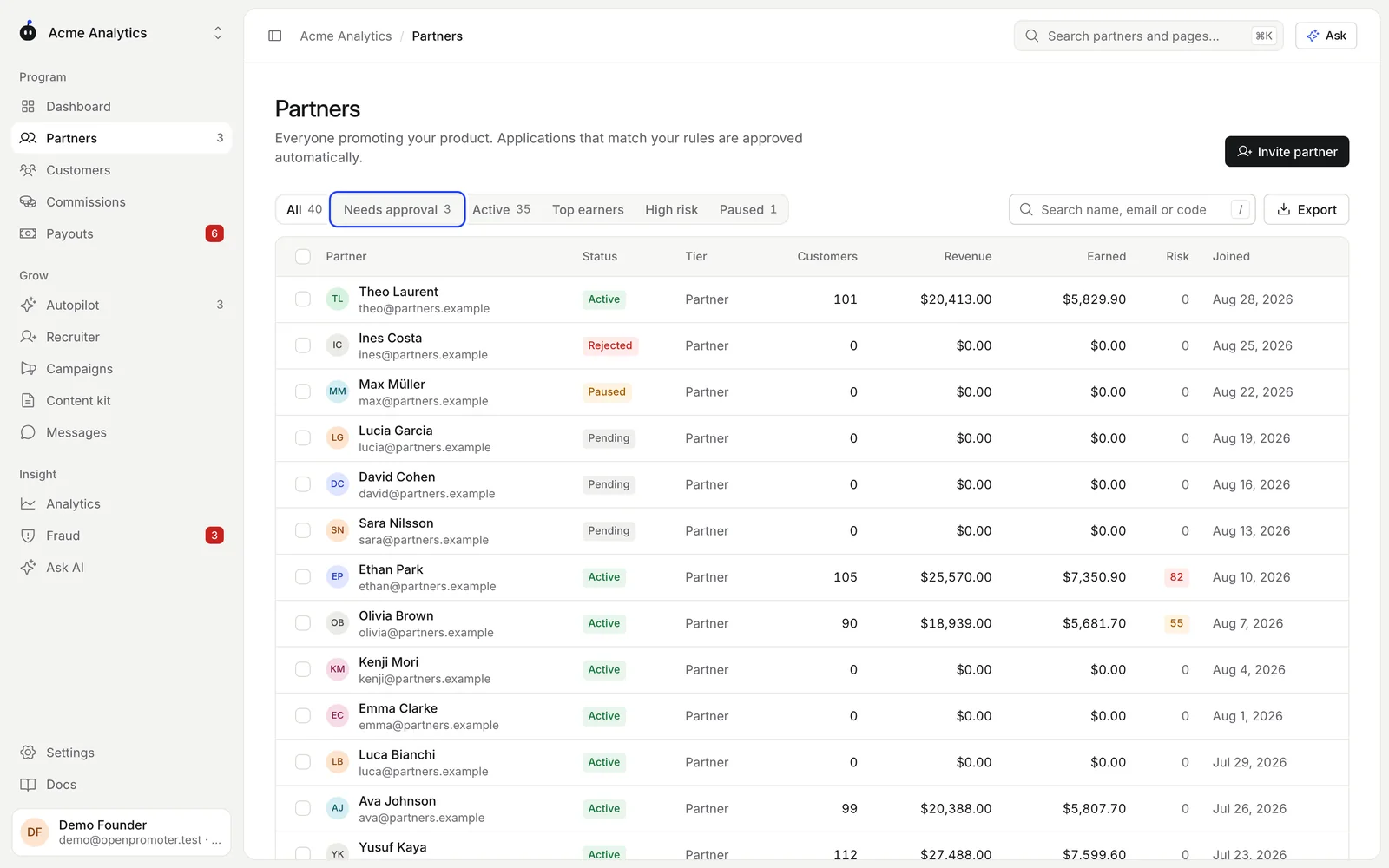
- Click a name to open the application. The Application card shows their answers to your questions.
- Click Approve or Reject at the top of the page.
An approved partner gets an email with their link and can sign in to the partner portal. A rejected applicant gets a short email that says the program can't accept them right now. A reply to it reaches the program owner. To handle several at once, tick them in the list and pick Approve or Reject from the bar that appears.
Applications that match your auto-approve rules skip this queue. Set the rules in Settings > Applications. See Application form.
How to invite a partner
- Open Partners and click Invite partner.
- Enter their Name and Email and pick a Tier.
- Click Send invite.
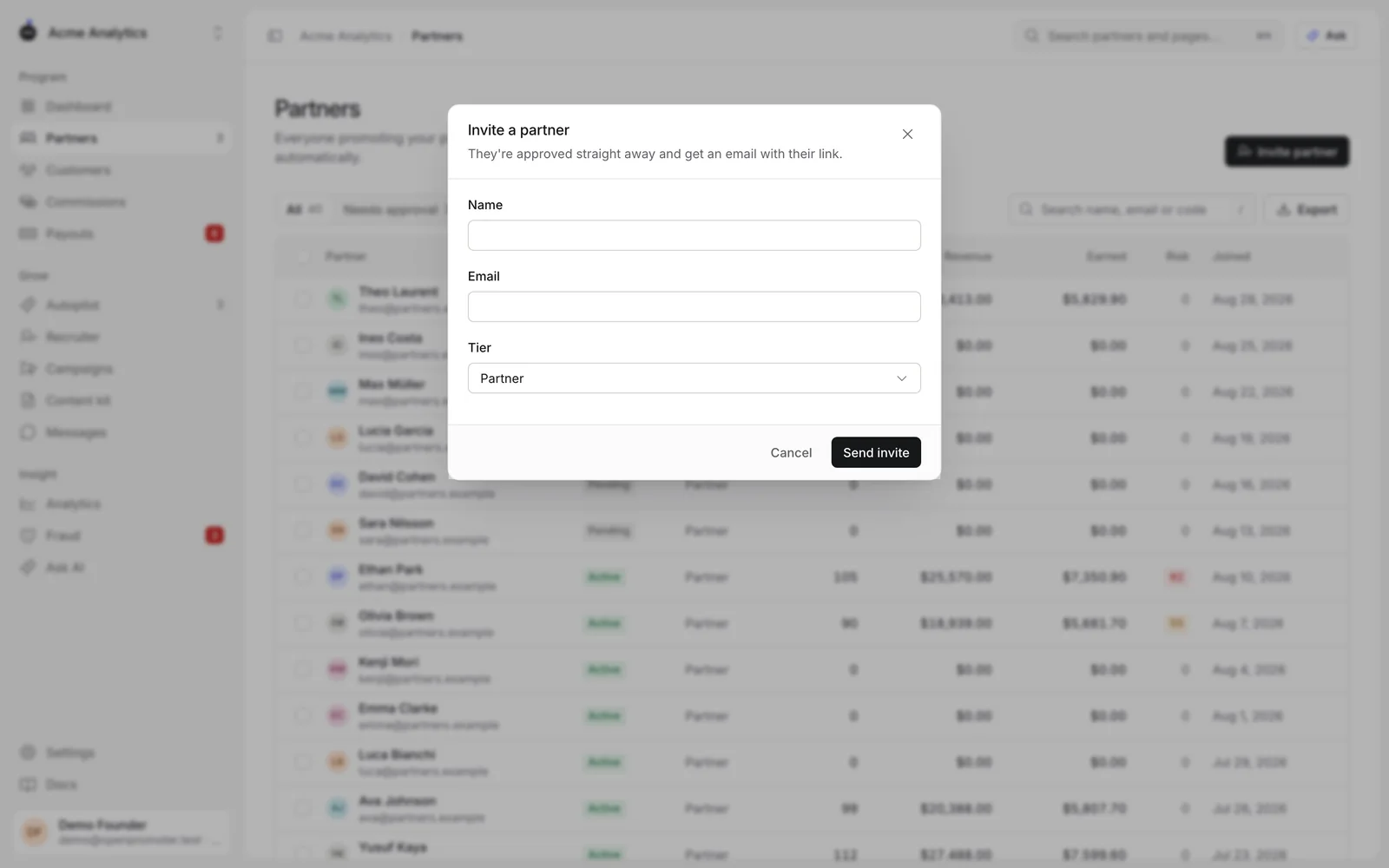
Invited partners are approved straight away and get an email with their referral link. To invite many customers at once, use the Recruiter. To move partners from another tool, use Import.
The partners list
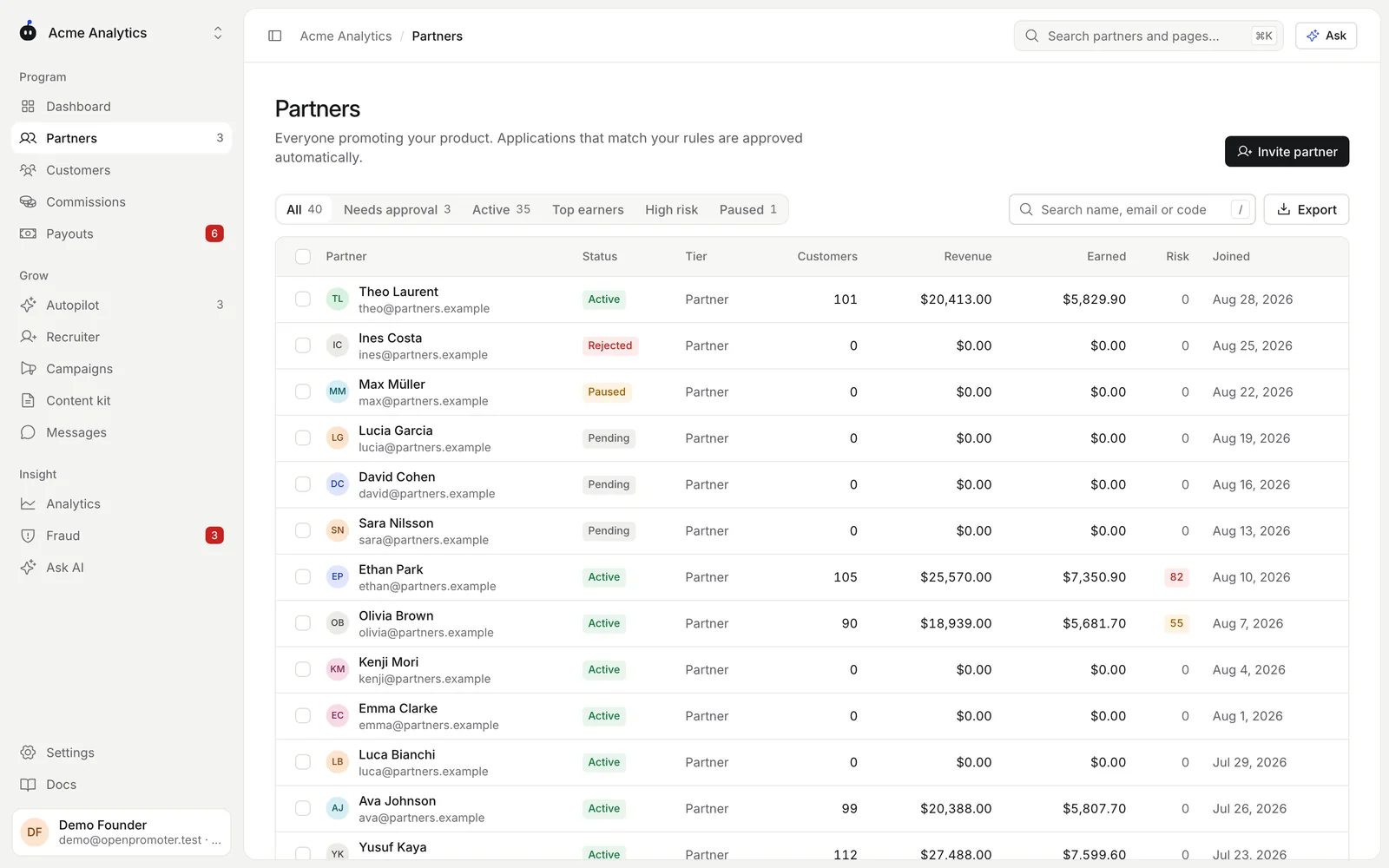
| Tab | Shows |
|---|---|
| All | Every partner in the program |
| Needs approval | Applications waiting for you |
| Active | Approved partners |
| Top earners | Active partners sorted by referred revenue |
| High risk | Partners at or above your fraud hold score |
| Paused | Partners you paused |
Each row shows the status, tier, customers, revenue, earned commission, risk score and join date. Search by name, email or referral code. Click a column header to sort.
Tick rows to act on several partners at once: Approve, Pause, Reject or Ban.
The partner page
Click any partner to open their page.
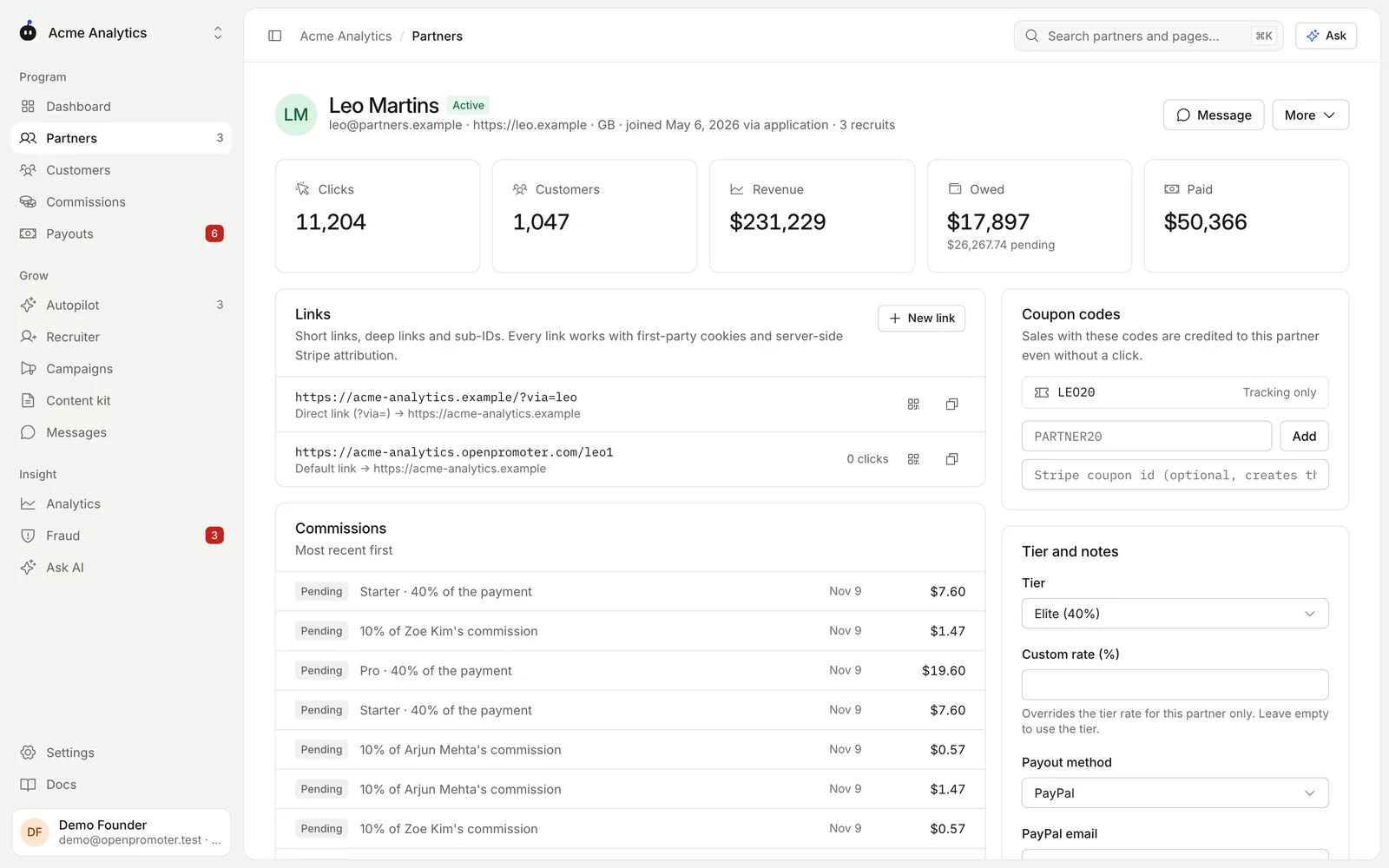
| Section | What it holds |
|---|---|
| Stats | Clicks, customers, revenue, owed (with the pending amount) and paid |
| Links | Their referral links with clicks, a QR code and a copy button |
| Coupon codes | Codes that credit sales to this partner without a click |
| Commissions | Every commission line for this partner with the newest first |
| Referred customers | The customers they brought |
| Tier and notes | Tier, custom rate, payout method and private notes |
| Payout and tax | Payout method, Stripe payouts status, tax form and VAT ID |
| Fraud signals | Open flags from the fraud checks |
| Application | Their answers to your application questions |
| Traffic | Where their visitors came from in the last 30 days |
Links
Click New link to create one. Pick a Destination on your site and an optional Sub-ID such as youtube or newsletter. Add a Custom slug and a Label if you like.
Every partner also has a direct link that adds ?via= (or your link parameter) to your website address. Click the QR icon on any link to show its QR code.
Coupon codes
Type a code such as PARTNER20 and click Add. Sales that use the code are credited to this partner even when the customer never clicked a link.
Leave the Stripe coupon id empty to track the code only. Enter a Stripe coupon id to also create the code in Stripe. The code then shows Created in Stripe.
Tier and custom rate
Pick a Tier to move the partner to another group with its own rate. Enter a Custom rate to pay this partner a different rate. Leave it empty to use the tier rate.
Click Save to keep your changes.
Tiers are set up in Settings > Program. See Commissions for how rates are chosen.
Payout method
Payout method defaults to Let the partner choose. You can set Stripe, PayPal or Wise for them, and fill in their PayPal email here. See Payouts.
How to pause or ban a partner
Open the partner and click More.
| Action | What happens |
|---|---|
| Pause | Their links stop recording clicks. New commissions from their existing customers are held until you reactivate them. |
| Approve / reactivate | They're active again and get the approval email |
| Ban | Their links stop working for referrals. Every unpaid commission is held. |
| Erase personal data | Removes their personal details for GDPR. Commissions and payouts stay in the ledger. It can't be undone. |
A banned partner is left out of every payout batch. To release held commissions later, open Commissions, pick the Held tab and use Release.
How to message partners
Open Messages to talk to partners one to one or to send an announcement to everyone.
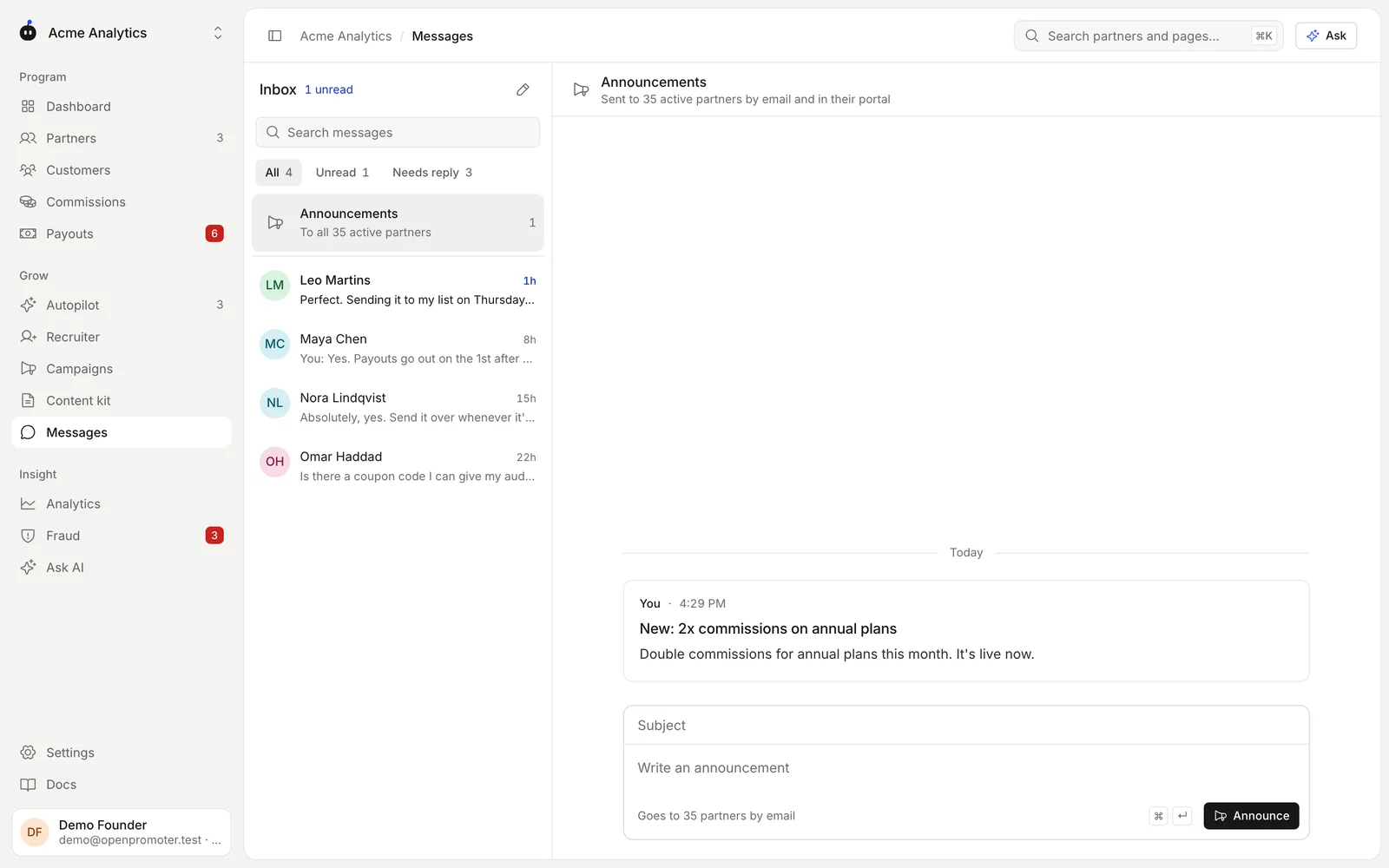
- Write to one partner. Click the pencil icon, find the partner and type your message. You can also click Message on a partner's page.
- Their replies. Your message reaches them by email and in their portal. Their replies show up in your inbox.
- Send an announcement. Click Announcements in the inbox, add a Subject and write the text. Click Announce to send it to every active partner by email and in their portal.
Filter the inbox with All, Unread and Needs reply. Launching a campaign sends an announcement for you. See Campaigns.
How to export partners
Click Export on the Partners page to download a CSV. The file follows the tab and search you have open. Export Needs approval to get only the pending applications, for example.
Good to know
- Only approved partners earn. Clicks on a pending, paused, rejected or banned partner's links are not credited.
- Viewers can see partners. Owners and admins can approve, pause, ban and edit them. See Team and access.
- Autopilot can suggest approving clean applications that waited two days and pausing risky partners. See AI features.
- The risk score comes from the fraud checks. See Fraud.
- Emails to partners show your program name as the sender. Replies go to the Reply-to email in Settings > Program, or to the owner when it's empty.
- Partners can turn off commission emails and program messages in their portal Settings. Approvals and payouts always reach them.
Next: Campaigns