Partner guide
For partners of a program on OpenPromoter. How to apply and sign in, where to find your link and QR code, and how you see your earnings and get paid.
This guide is for partners of a program that runs on OpenPromoter. Your portal holds your referral link, the clicks and sales it brings, your earnings and your payouts. Read it once after you apply and keep the link for later.
How to apply
- Open the program page the team sent you and click Become a partner. Or open the application link directly.
- Under About you, enter your Full name, Email and a Password for your portal.
- Under Where you'll share, add your Website or main channel and your Country. Answer any questions the team added.
- Tick the box to agree to the program terms, including the self-billing agreement for commission invoices.
- Click Join and get my link. Programs that review applications show Send application instead.
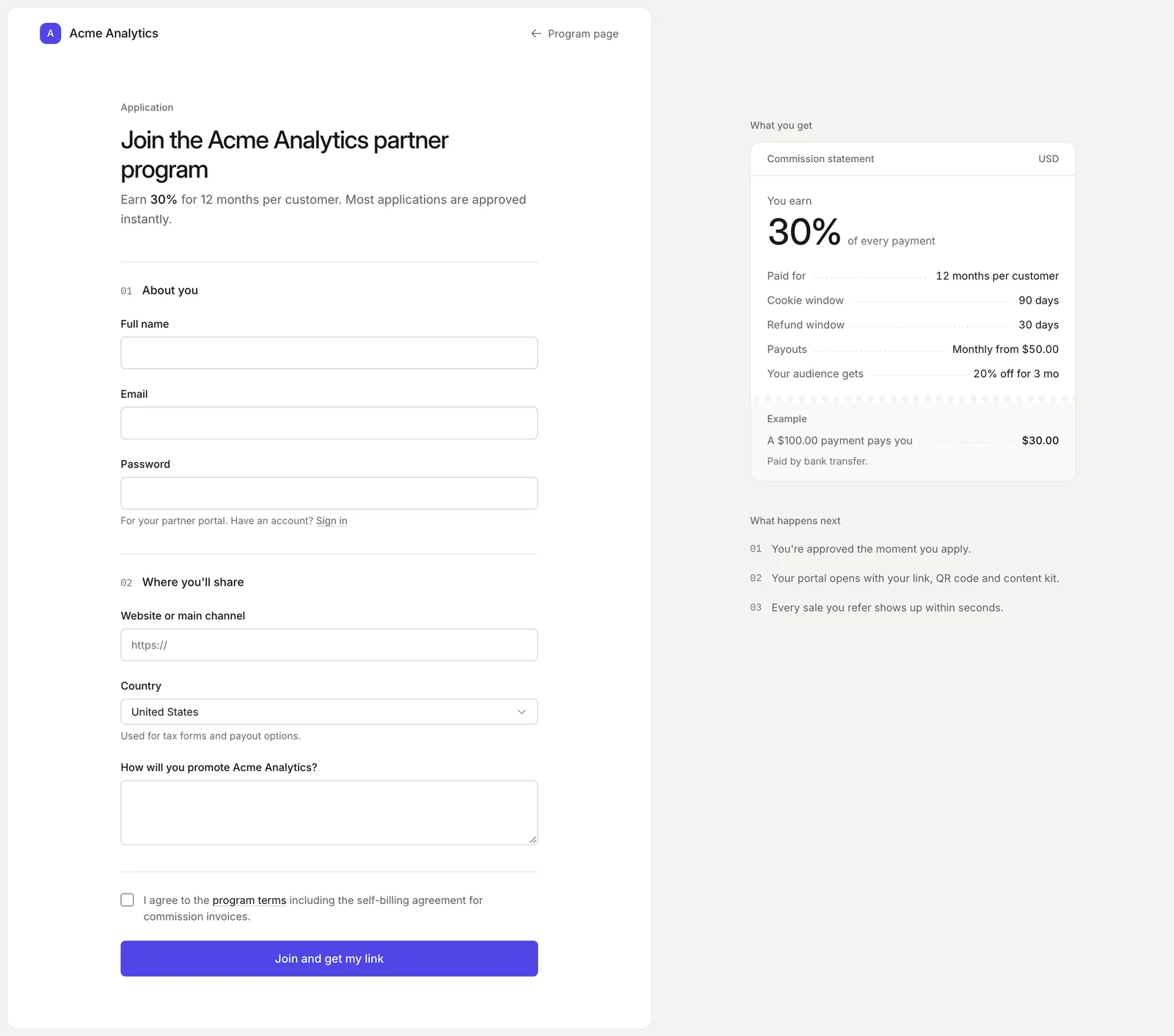
The panel beside the form shows what you earn: the rate, how long it is paid and the cookie window. It also shows the refund window and how often payouts go out.
Some programs approve you the moment you apply and open your portal straight away. Others review each application. While you wait, your portal shows "Your application is being reviewed" and you get an email once you're approved.
An invite-only program shows "This program is invite-only" instead of the form. Ask the team for an invitation link.
Your country is used for tax forms and payout options. Already have an OpenPromoter account? Click Sign in under the password field and apply while signed in.
How to sign in
Your portal lives on the program's own address. That is the company's domain (such as partners.acme.com) or a free address like acme.openpromoter.com. Use the Partner login link on the program page or open /portal on that address.
- Open the program page and click Partner login.
- Click Continue with Google or Continue with GitHub, or enter your Email and Password.
- Click Sign in.
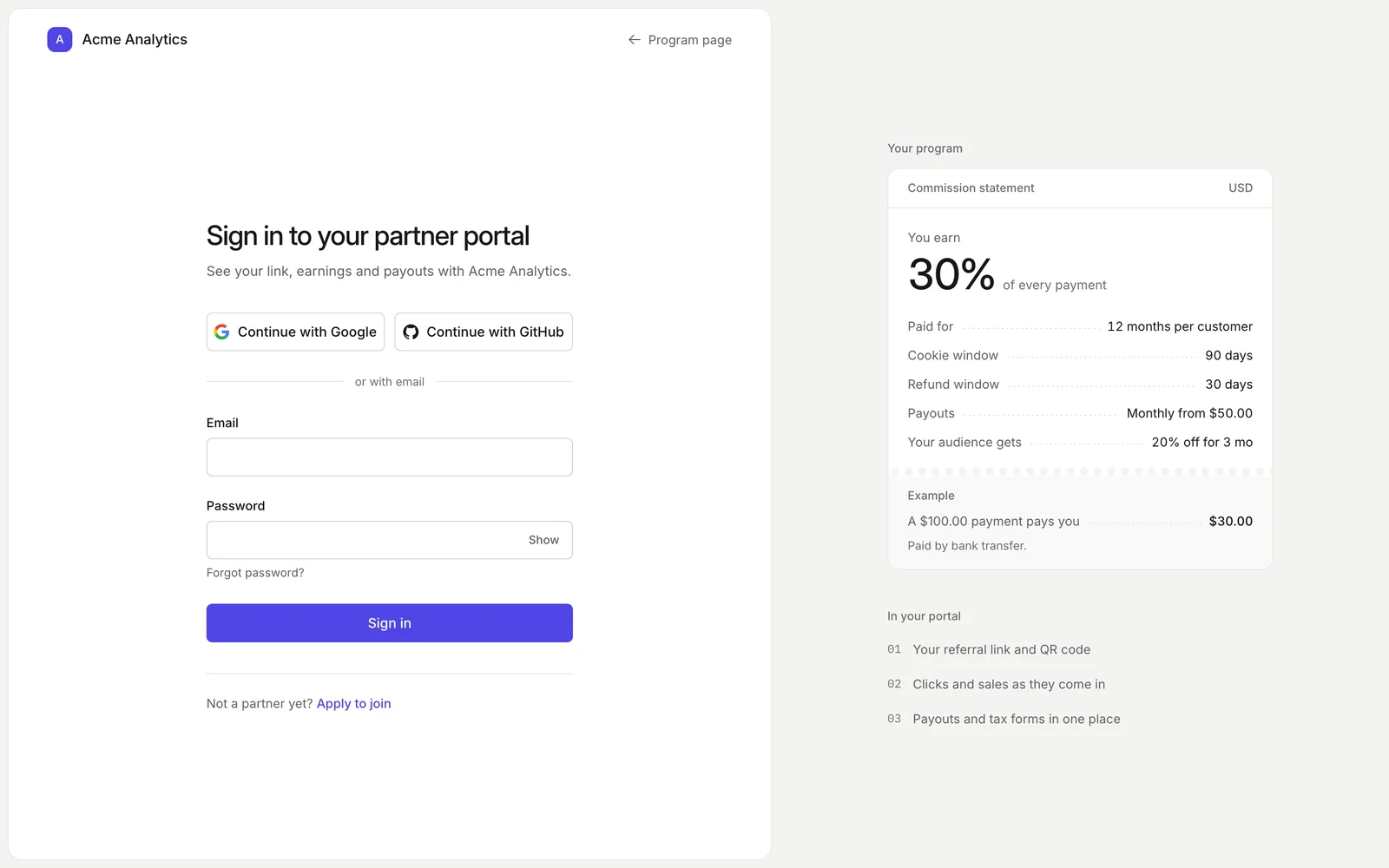
The sign-in page shows the program's name, logo and offer. Not a partner yet? Click Apply to join under the form.
Forgot your password? Click Forgot password?, enter your email and click Send reset link. The email opens a page where you choose a new password of at least 8 characters.
Overview
The Overview page is your home. It greets you by name and repeats your rate and payout terms.
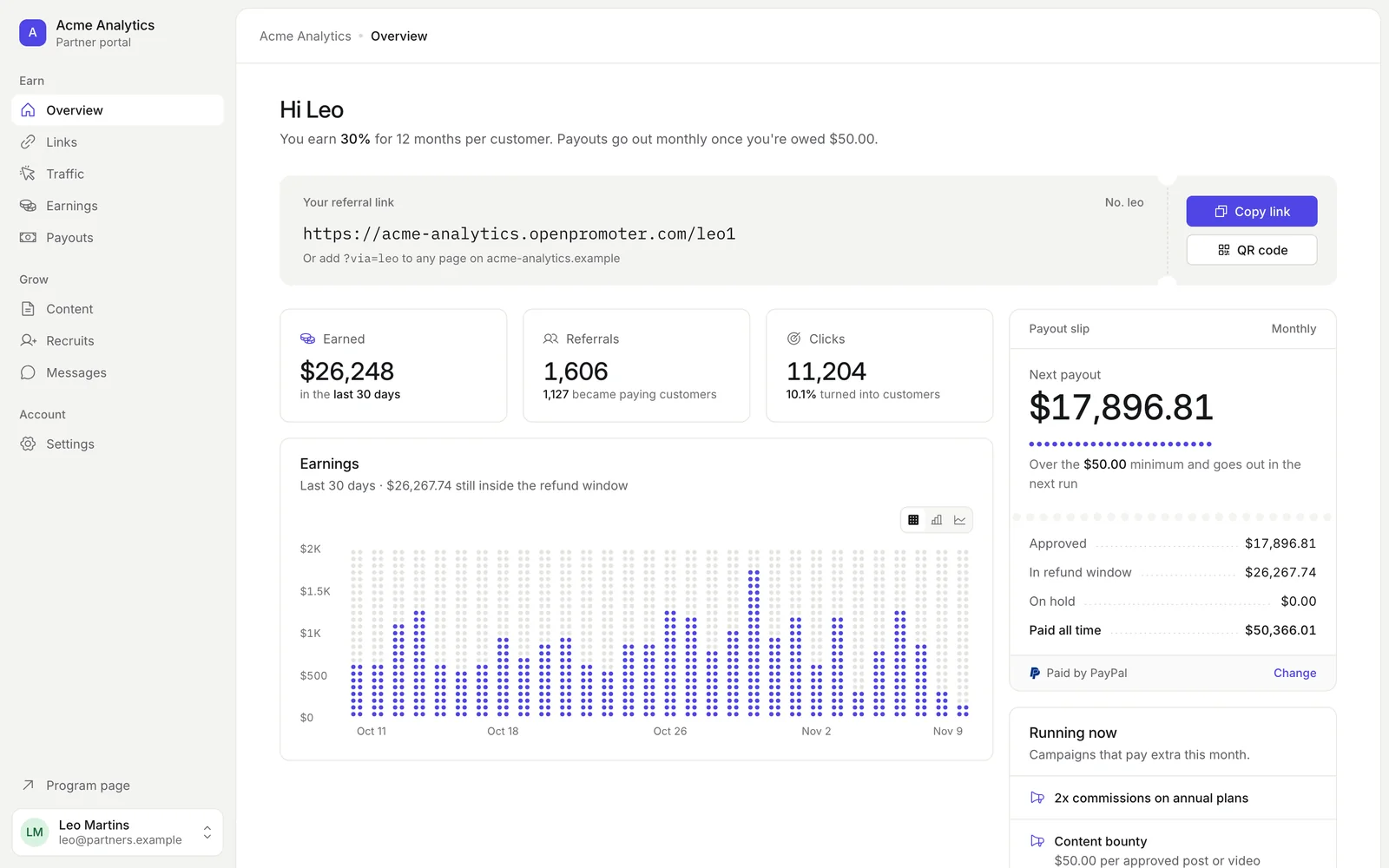
| Part | What it shows |
|---|---|
| Your referral link | Your main link and your partner code |
| Get set up | Three first steps: add a payout method, share your link and get your first referral |
| Earned | Commissions from the last 30 days |
| Referrals | Signups you brought and how many became paying customers |
| Clicks | Clicks on your links and the share that turned into customers |
| Earnings | A 30-day chart and how much is still inside the refund window |
| Payout slip | Your next payout and how close you are to the minimum |
| Running now | Campaigns that pay extra this month, such as a boost or a bounty |
Copy your link
Click Copy link to copy your referral link. Paste it anywhere you share the product.
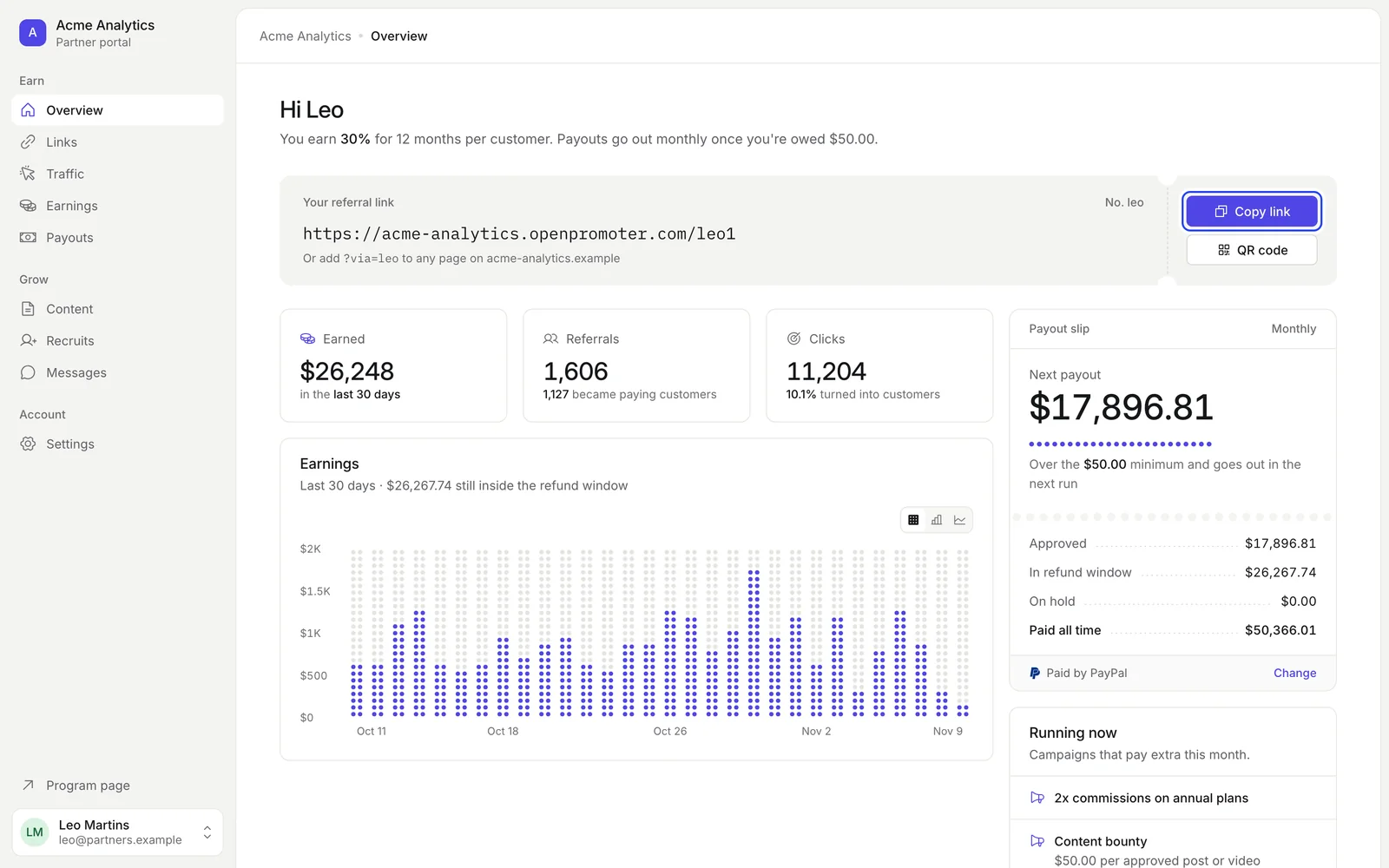
You can also add ?via=yourcode to any page on the product's website. The exact parameter is shown under your link. Both ways credit you.
Click QR code for a code you can put on print, slides or video. Click Download SVG to save it. Scans count as clicks on that link.
Links
Links lets you make a tracked link to any page on the product's site. Each link counts its own clicks and customers. That shows you which post, video or channel works.
- In Create a link, paste the page into Destination page.
- Optionally add a Sub-ID such as
youtubeto tell placements apart. - Click Create link.
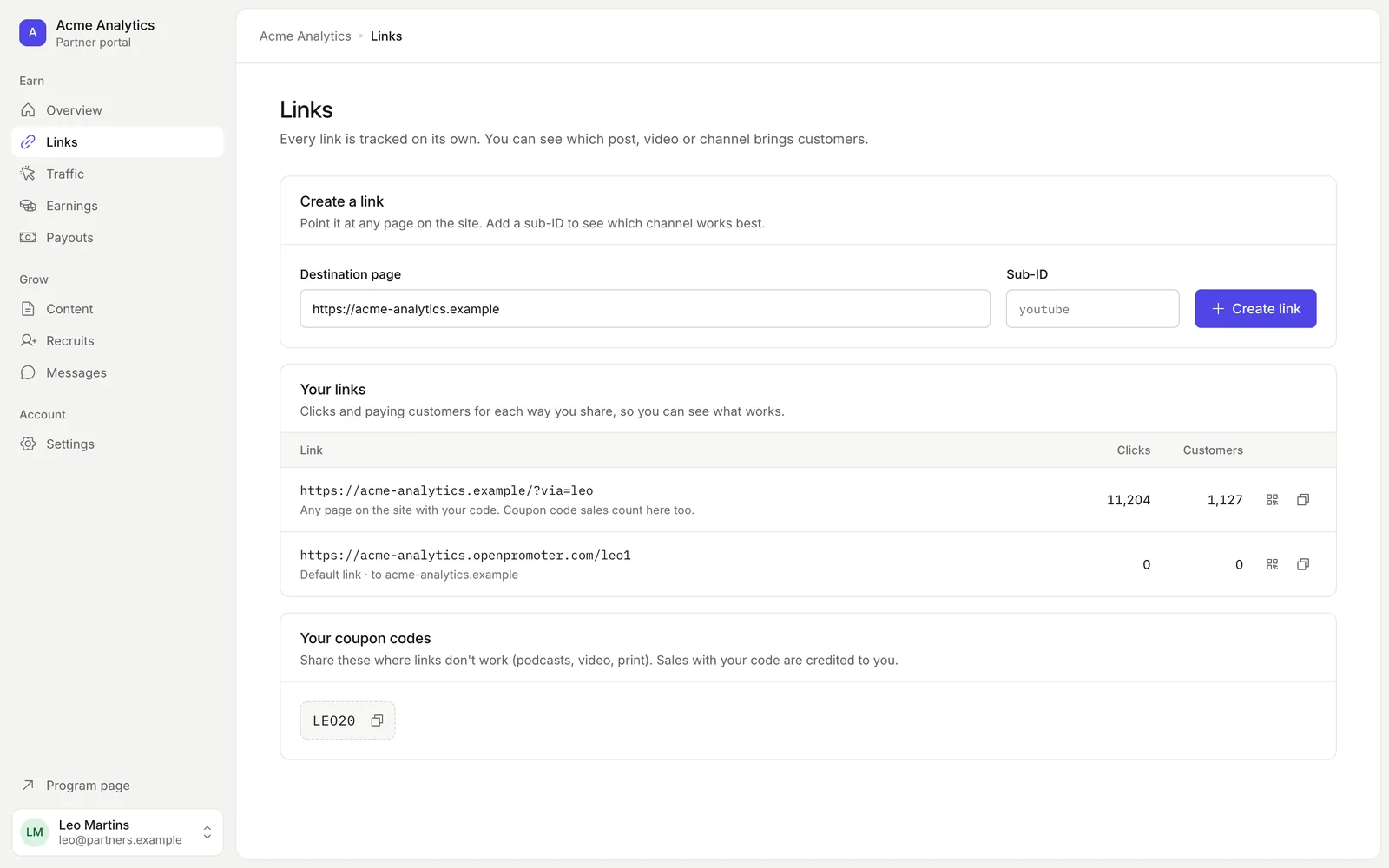
Your links lists every link with its clicks and paying customers. The first row is your ?via= code on any page. Sales with your coupon code count there too.
Each row has a QR code and a copy button. Links must point to the product's own website.
Your coupon codes appears when the team gives you a code. Share it where links don't work, such as podcasts, video and print. Any sale with your code is credited to you, even without a click.
Traffic
Traffic shows who clicks your links and whether they buy. Pick 7 days, 30 days or 90 days at the top.
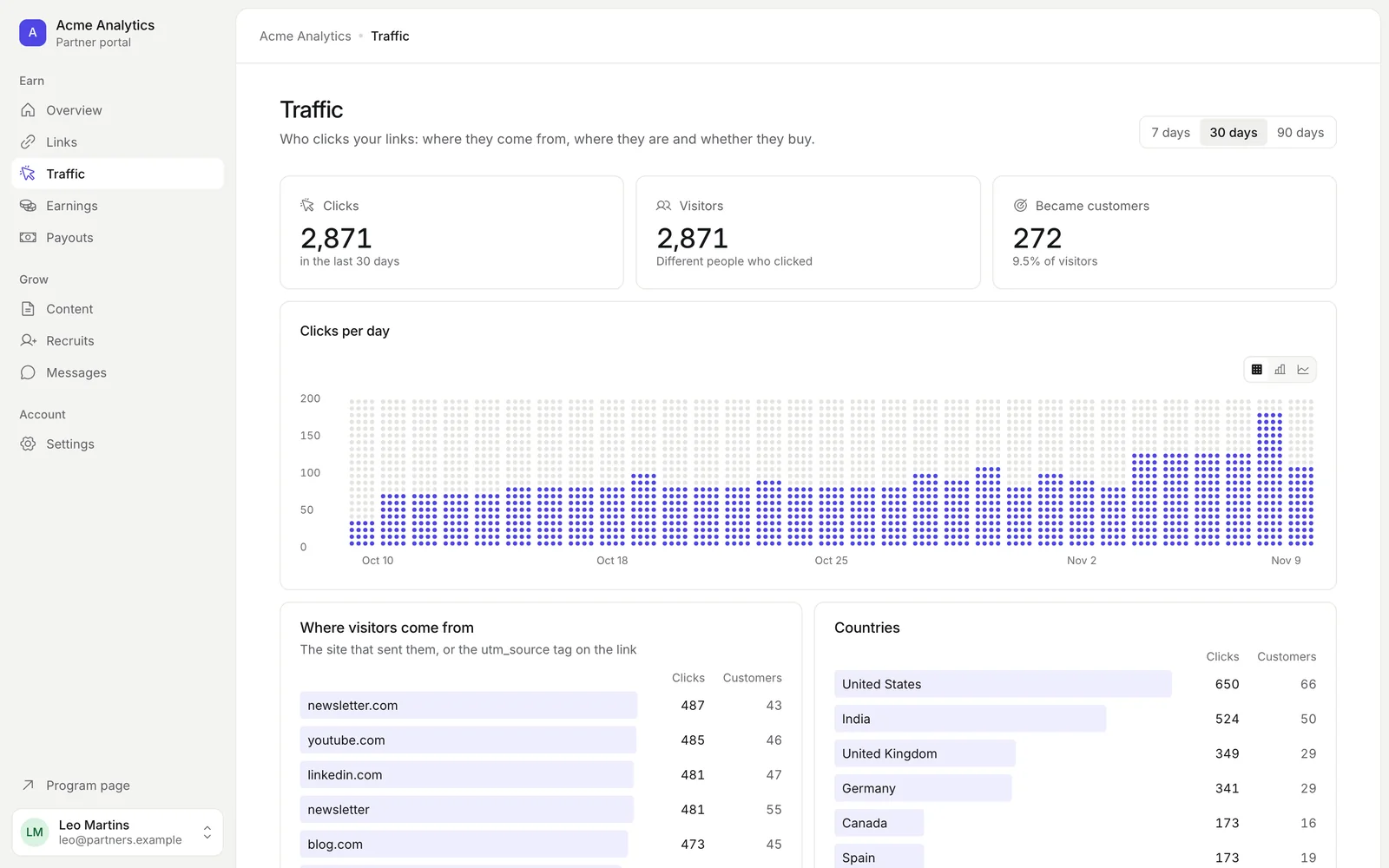
| Section | What it shows |
|---|---|
| Clicks, Visitors and Became customers | Totals for the period |
| Clicks per day | A daily chart |
| Where visitors come from | The site that sent them, or the utm_source tag on the link |
| Countries, Devices and Landing pages | Where visitors are, what they use and where they land |
| Sub-IDs | Clicks per sub-ID. Add ?sub= to a link to tell placements apart |
| Latest visits | The newest clicks with source, country, device and result |
Bot clicks are left out. No personal data about visitors is kept.
Earnings
Earnings shows every commission you earned and where it stands.
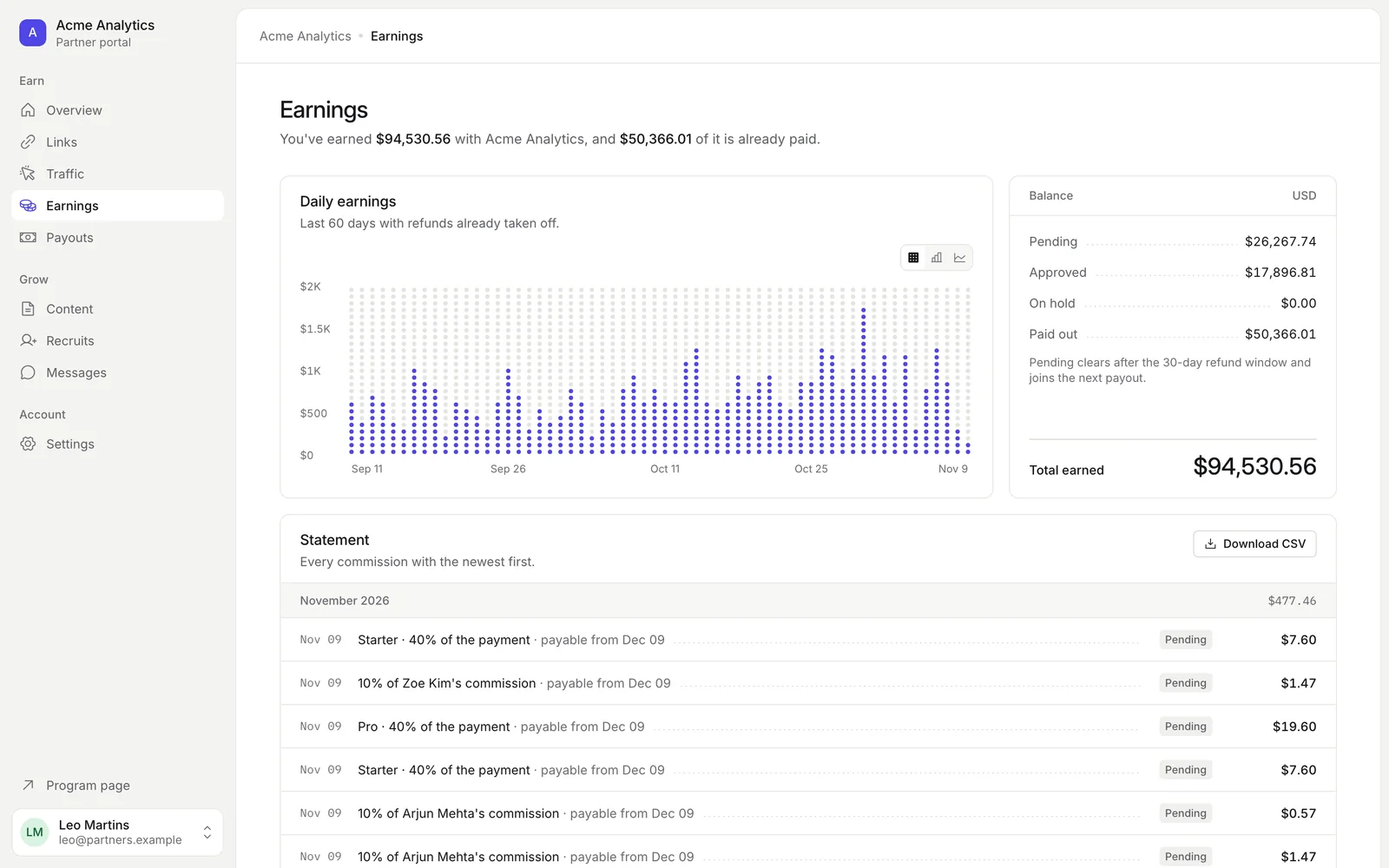
The Balance card splits your money four ways:
| Status | Meaning |
|---|---|
| Pending | Earned but still inside the refund window |
| Approved | Past the refund window and ready for the next payout |
| On hold | Paused while the team or a fraud check reviews it, or while a chargeback is open |
| Paid out | Already sent to you |
Pending commissions move to approved on their own when the refund window ends. Each line in the Statement shows the date it becomes payable.
If a customer gets a full refund inside the window, that commission is removed. A partial refund lowers it. A refund after you were paid is taken off your next payout.
Daily earnings charts the last 60 days with refunds already taken off. Click Download CSV for your full statement with the date, description, status, amount, currency and payable date.
Payouts
Payouts is where you choose how you get paid and see every payout.
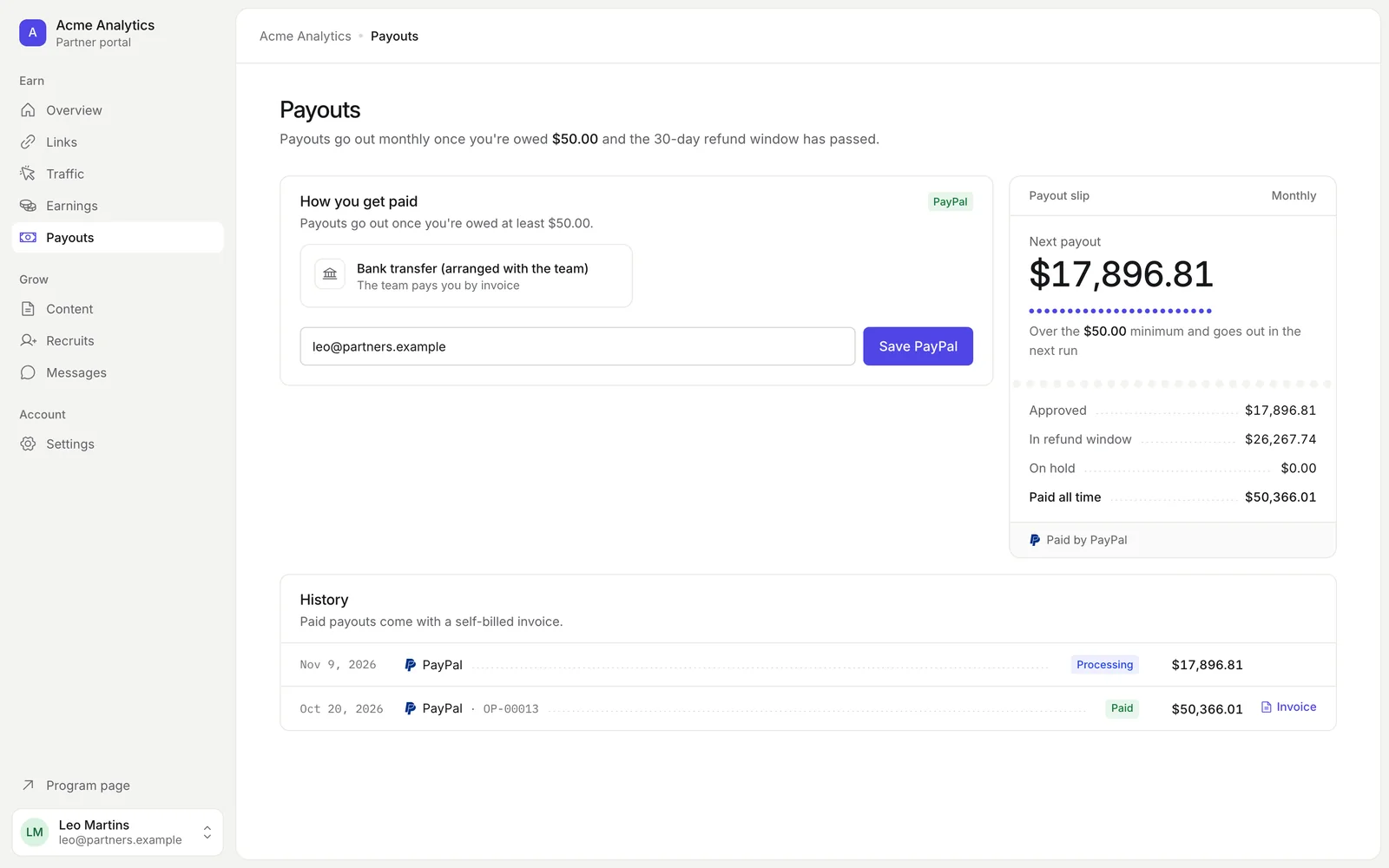
- Under How you get paid, pick one of the methods this program offers.
- For PayPal or Wise, enter your account email and click Save PayPal or Save Wise.
- For Bank account (Stripe), click Set up with Stripe and finish Stripe's steps. The card shows Ready for payouts when Stripe is done.
- For Bank transfer (arranged with the team), click Use bank transfer. The team pays you by invoice.
| Method | How the money arrives |
|---|---|
| Bank account (Stripe) | Straight to your bank. Stripe also collects your tax form |
| PayPal | To your PayPal email |
| Wise | To your Wise account with low currency fees |
| Bank transfer | The team pays you by invoice |
The page header says how payouts work in this program. Payouts go out weekly, monthly or on the team's own schedule once you're owed the minimum. Only commissions past the refund window count.
The Payout slip shows your next payout and how much more you need to reach the minimum. Under History, each paid payout has an Invoice link. It opens a self-billed commission invoice you can print or save as a PDF.
If a payout fails, its commissions return to your balance and go out in a later payout.
Content kit and bounties
The Content page holds the program's Content kit: posts, emails and banners ready to share. Your link is already filled in.
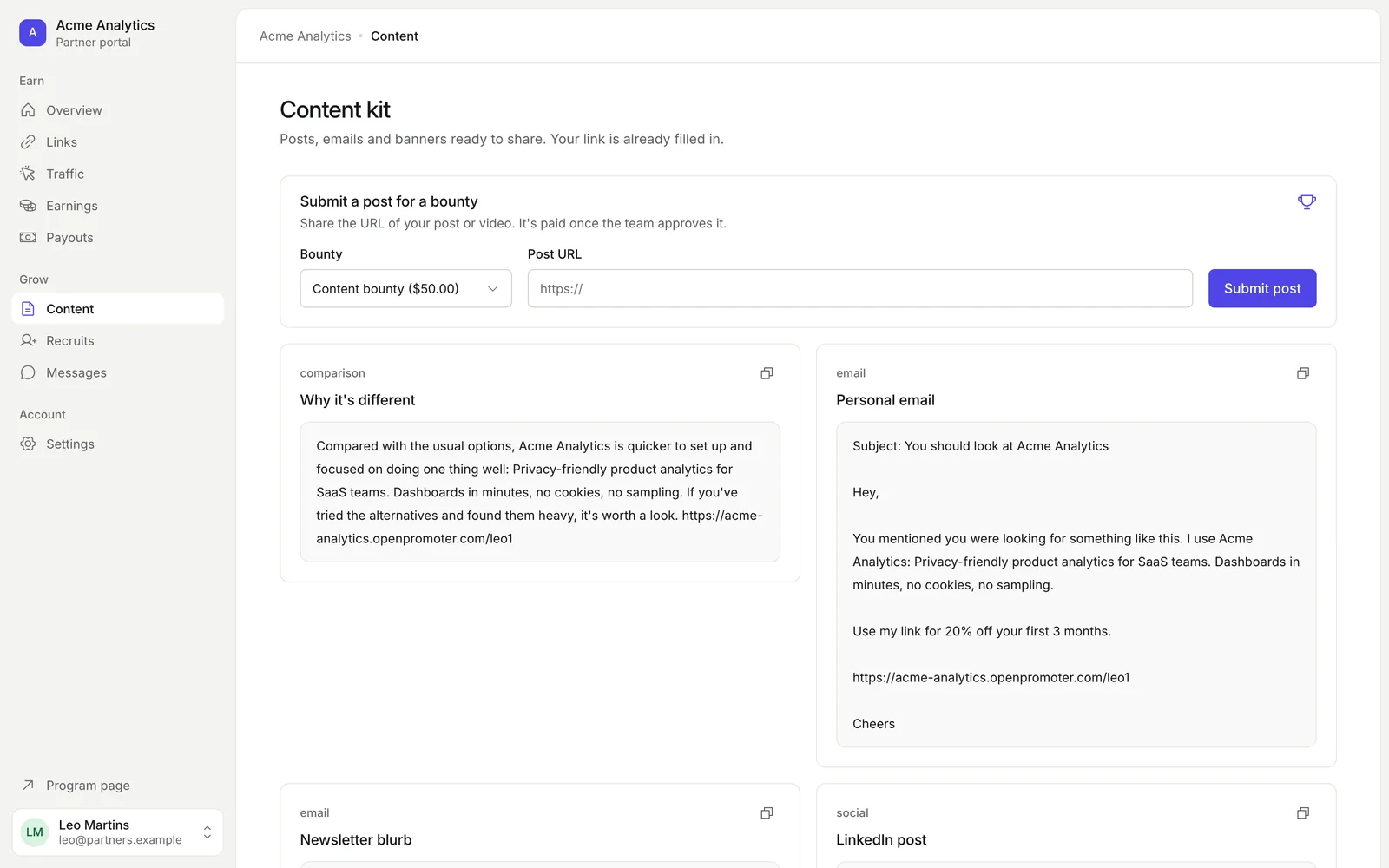
- Click the copy icon on a post or email to copy its text.
- Click Download on a banner to save the image.
- Resources lists files, guides and pages the team recommends.
When the team runs a bounty for posts, Submit a post for a bounty appears at the top. Pick the Bounty, paste your Post URL and click Submit post. The bounty is paid once the team approves it.
Recruits
Recruits appears when the program pays you for bringing in other partners. You earn a share of every commission your recruits earn. Your own commission stays the same.
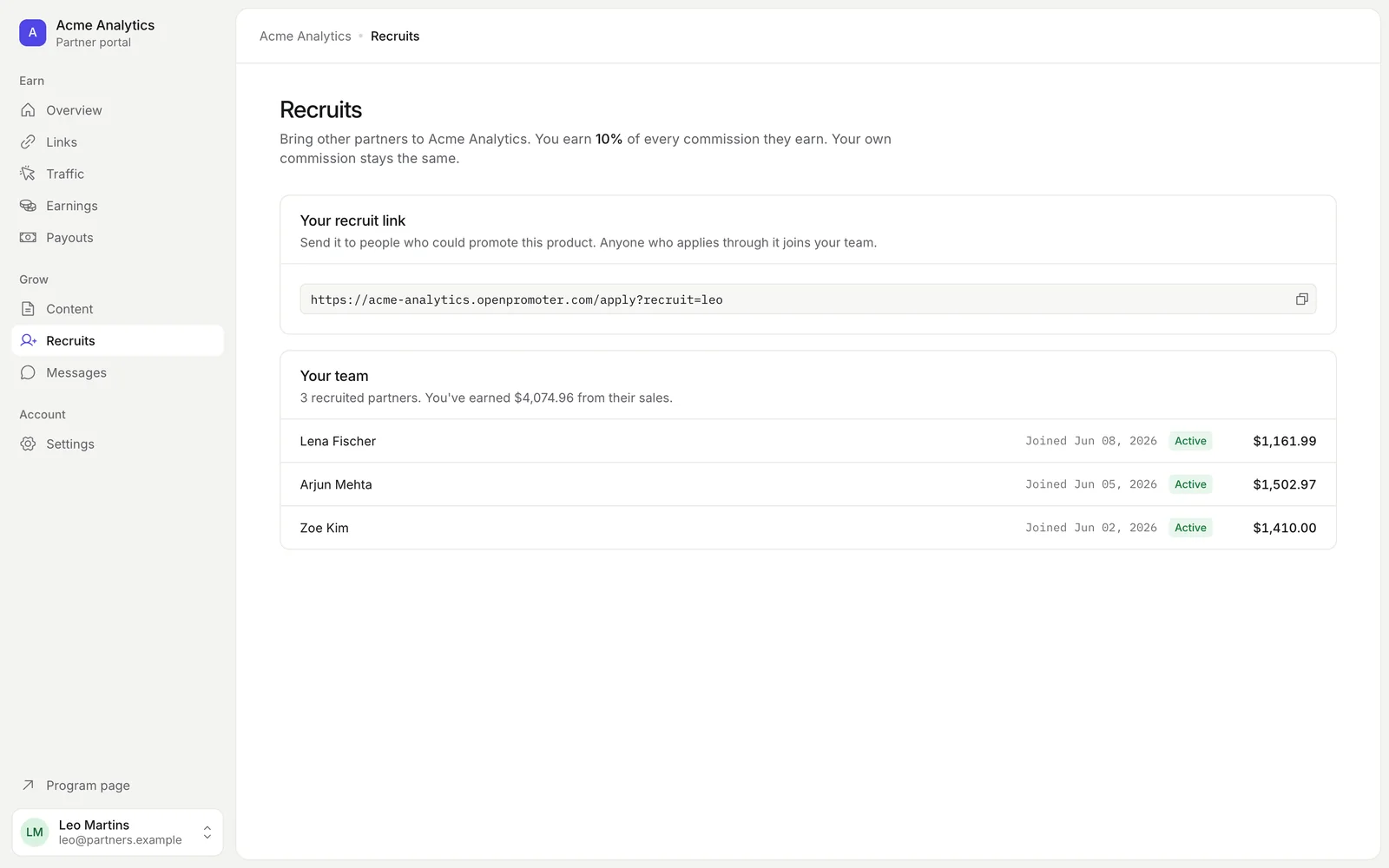
Copy Your recruit link and send it to people who could promote the product. Anyone who applies through it joins your team.
Your team lists each recruit with the date they joined, their status and what you earned from their sales. Your recruit link appears once your own account is approved.
Messages
Messages is where you talk to the team and read their announcements.
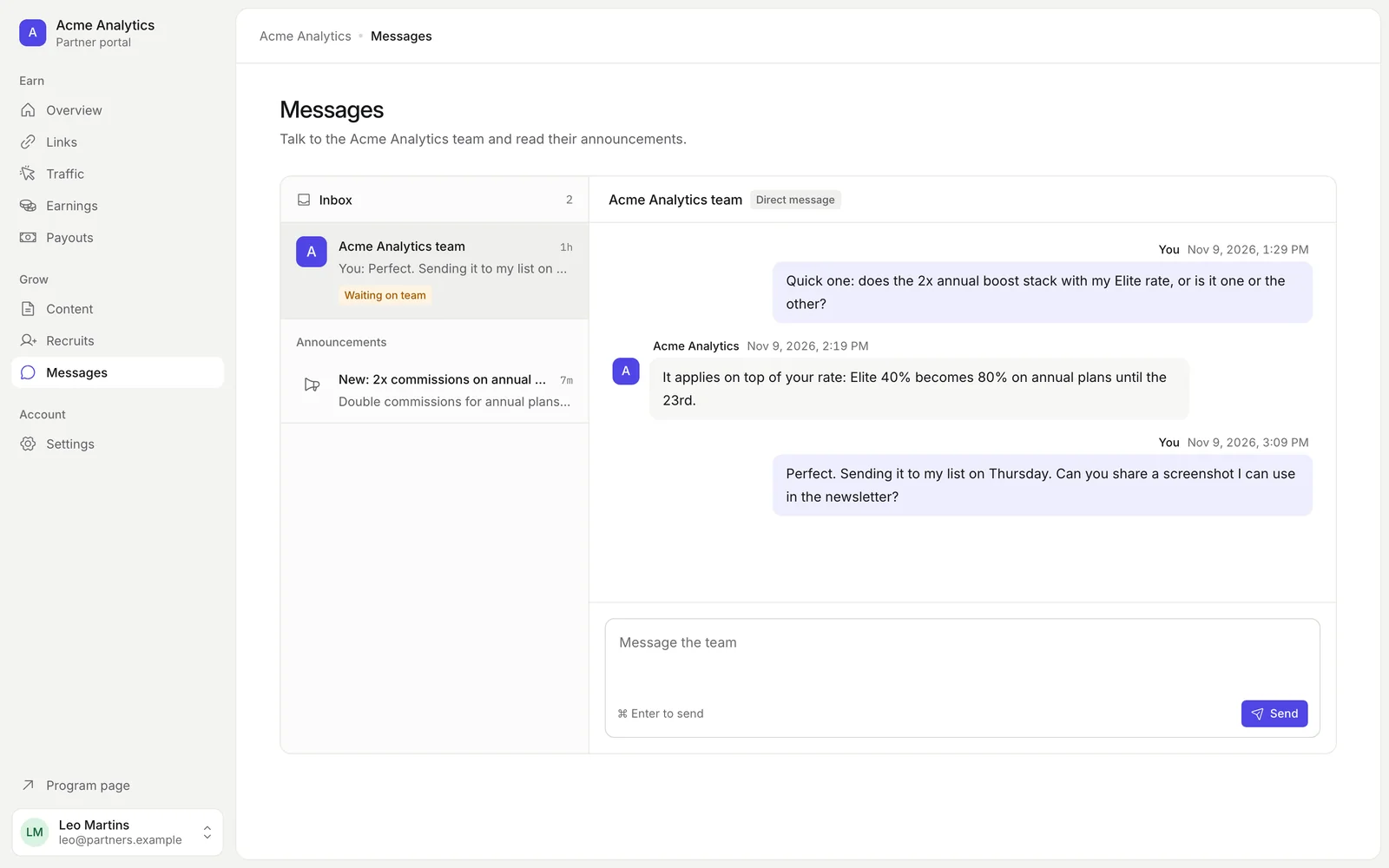
Type in Message the team and click Send, or press Cmd and Enter. Your thread shows Waiting on team until they reply. Announcements to all partners appear under Announcements in the inbox.
Settings
Settings holds your tax details. The team needs them for your commission invoices and tax reports.
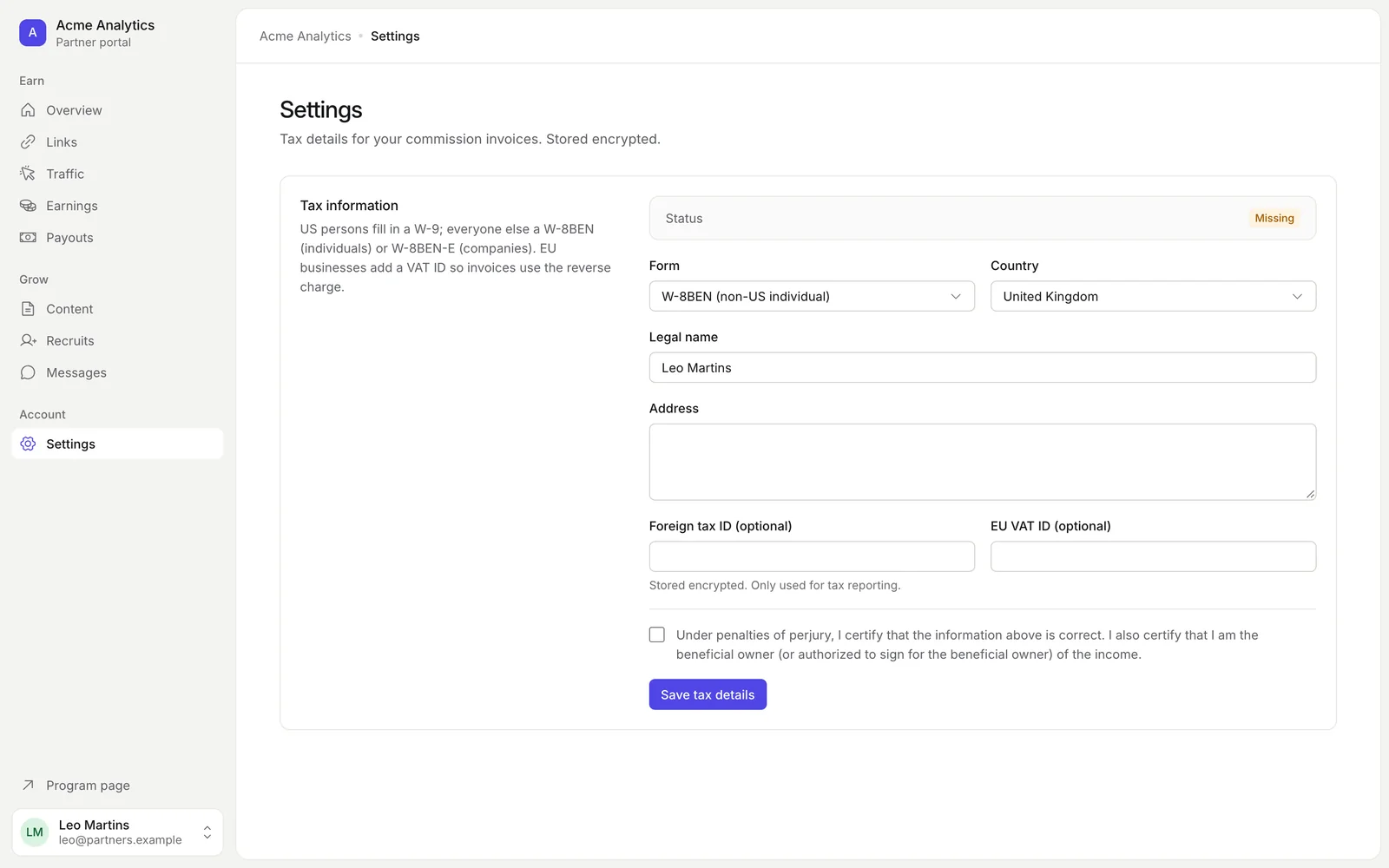
- Pick your Form: W-9 (US person), W-8BEN (non-US individual) or W-8BEN-E (non-US company).
- Choose your Country and enter your Legal name and Address.
- Enter your SSN or EIN for a W-9, or a Foreign tax ID if you have one.
- EU businesses add an EU VAT ID so invoices use the reverse charge.
- Tick the certification box and click Save tax details.
The Status changes from Missing to Submitted. Tax IDs are stored encrypted and used only for tax reporting.
If you're paid through Stripe, Stripe also collects your tax details. Fill this form in too if you're paid by PayPal, Wise or bank transfer.
Under Emails, turn Commission earned or Program messages off if you'd rather not get them by email. Messages still show on the Messages page. Approvals, payouts and sign-in emails always arrive. Every optional email also has an Unsubscribe link at the bottom.
Good to know
- Your link starts tracking once you're approved. Clicks before that don't count.
- A sale is credited to you when the customer used your coupon or came through your link inside the cookie window.
- US partners paid outside Stripe must submit a W-9 with an SSN or EIN before passing the IRS 1099 limit in a year. Until then, a payout that would pass it fails and the money stays in your balance.
- You can join several programs with one account. Open the account menu at the bottom left and use Your programs to switch, or All programs to see them all.
- The same menu switches between light and dark theme and signs you out.