Program page and application form
Set up the public page where partners learn about your program and apply. Add questions, approve good applicants automatically, go invite-only and write your program terms.
Every program gets a public program page and an application form. Partners read your offer on the page and apply on the form. You decide who gets in: approve each application by hand, approve good ones automatically or accept invited partners only.
Your program page
The program page shows your headline and description, a Become a partner button and a commission statement. The statement lists the rate, how long it is paid, the cookie window, the refund window, payouts and any customer discount. A Program terms section sits at the bottom.
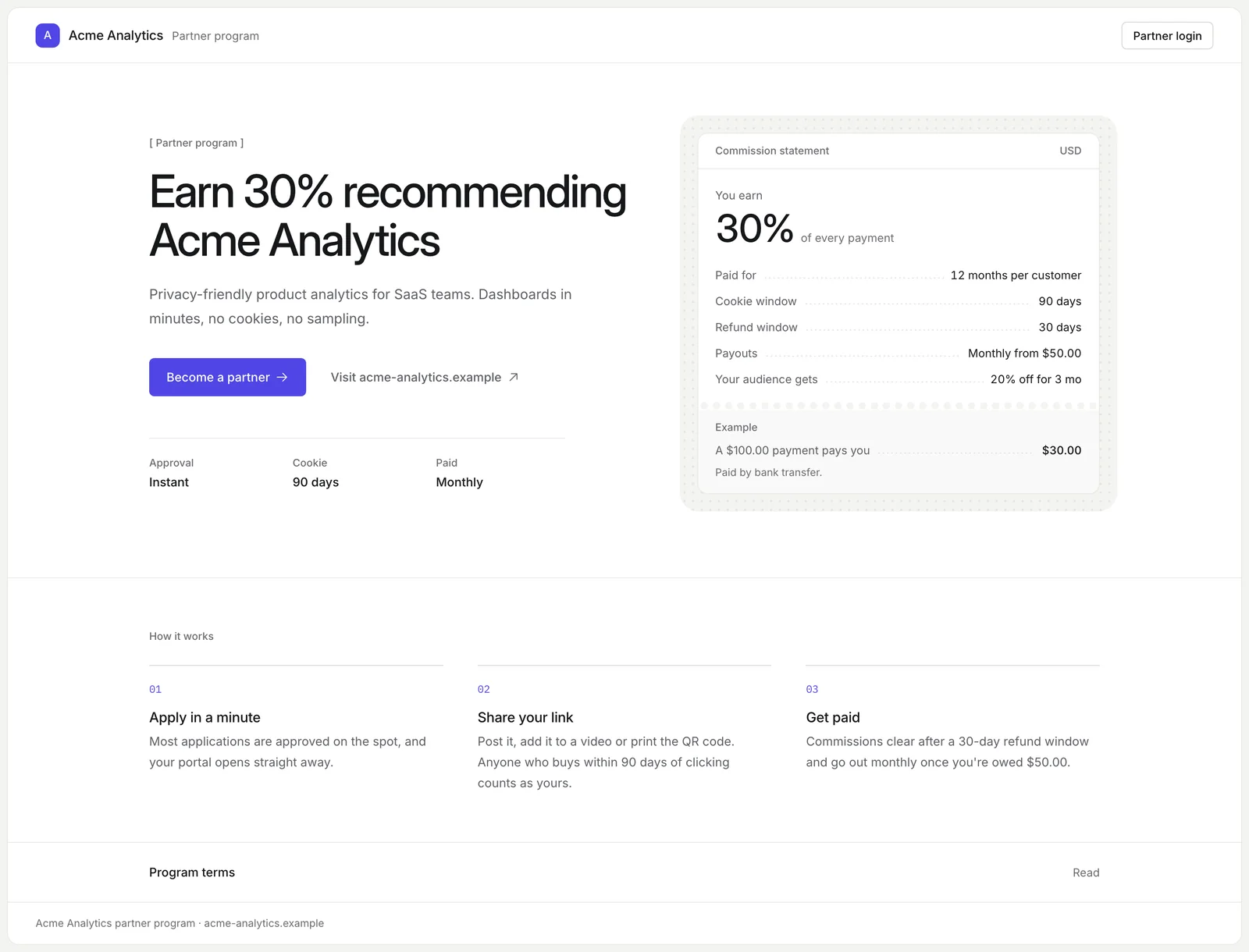
On Cloud it lives at your free address, such as https://acme-analytics.openpromoter.com, or at your own domain. Open it from Settings > Portal & domain > Open program page. The headline, description, logo and color come from Branding and portal.
The application form
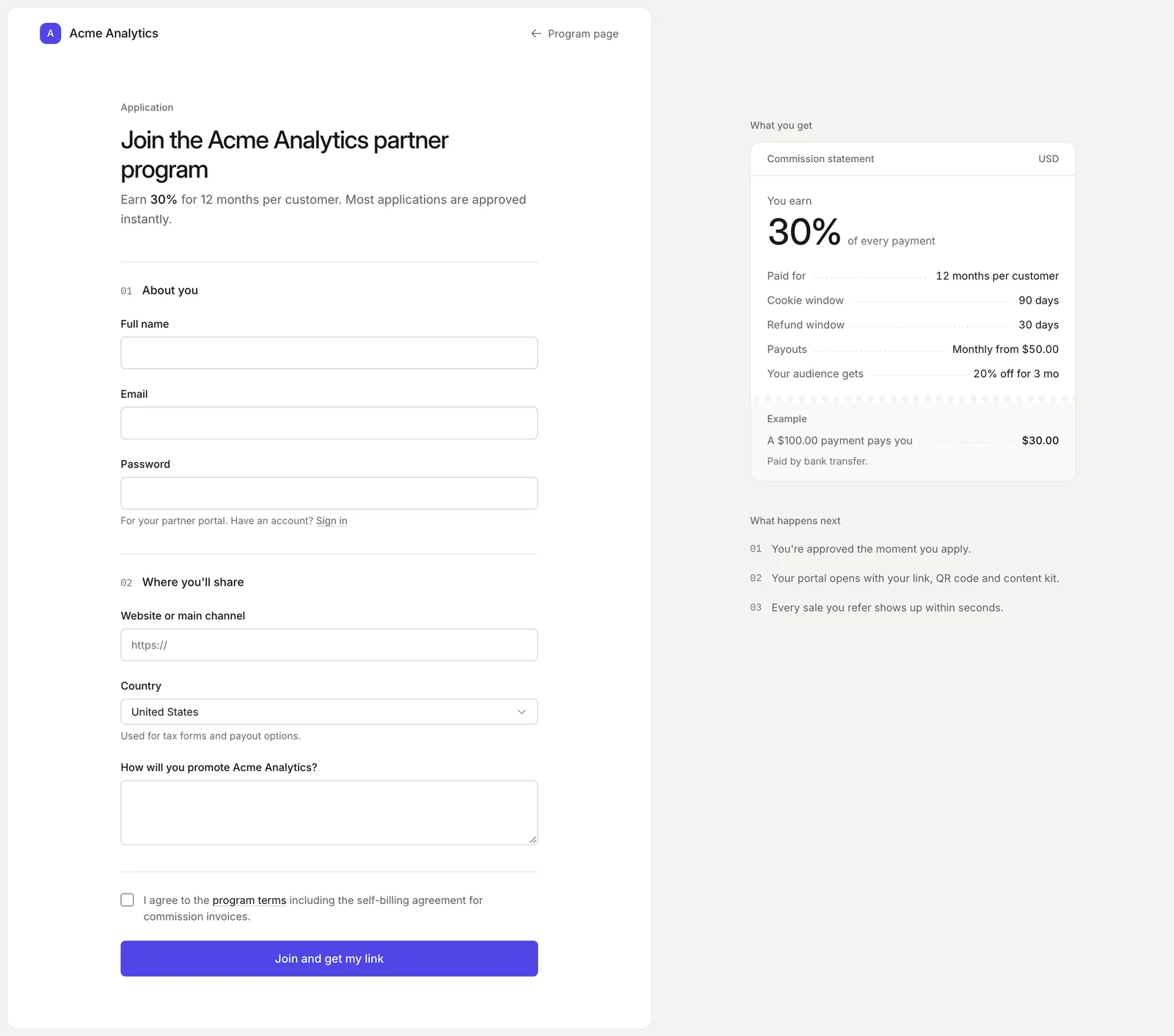
Become a partner opens the form at /apply on the same address. Partners fill in:
- About you: Full name, Email and Password for their partner portal
- Where you'll share: Website or main channel and Country
- Your own questions
- A checkbox to accept your program terms and the self-billing agreement for commission invoices
They click Join and get my link. Approved partners land in their portal with their link straight away.
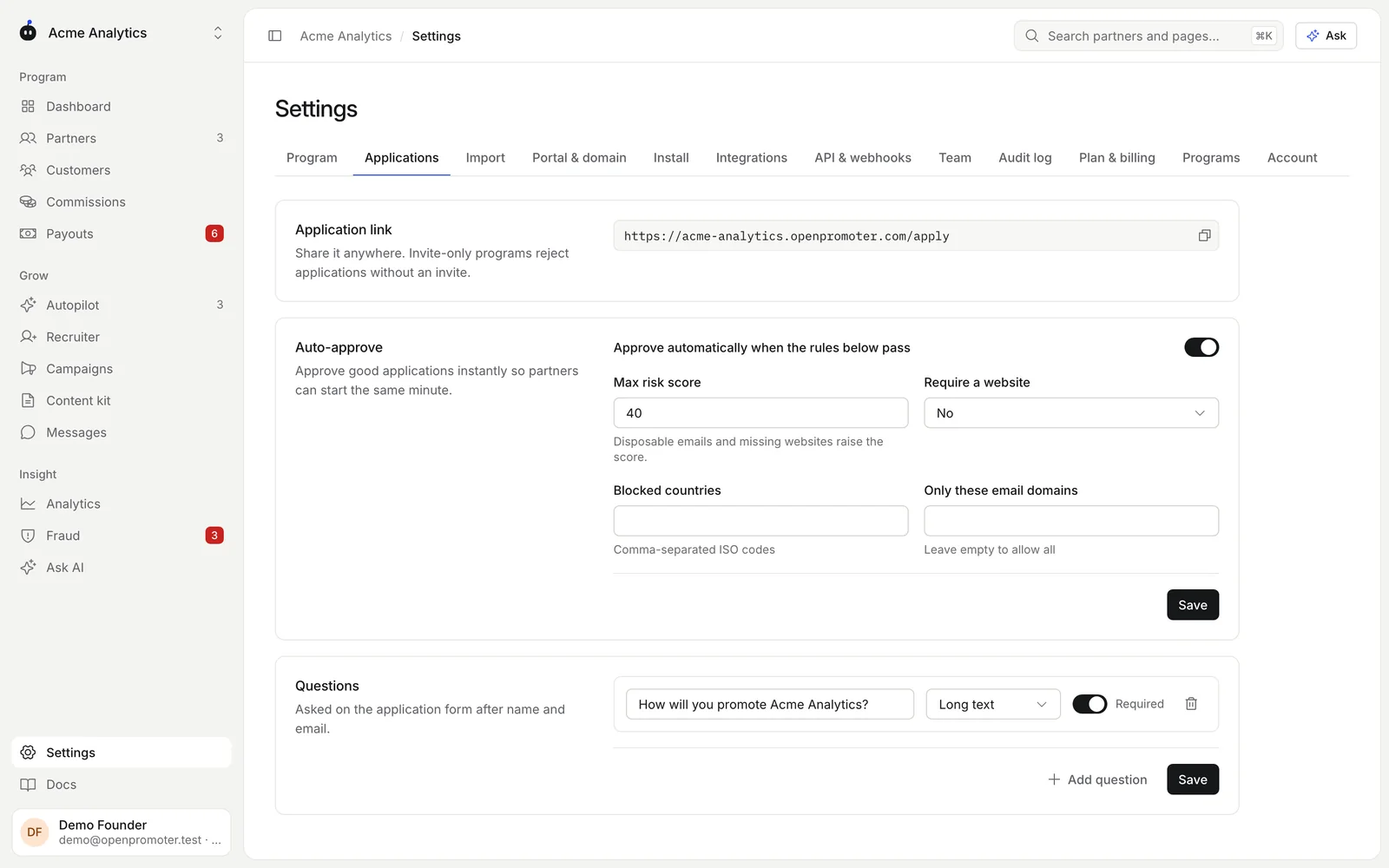
How to set up applications
- Open Settings > Applications.
- Copy your Application link to share it anywhere.
- Under Auto-approve, turn on Approve automatically when the rules below pass and set the rules. Click Save.
- Under Questions, click Add question for each question you want to ask. Click Save.
Auto-approve rules
With auto-approve on, an application is approved the moment it passes every rule. Anything else waits for you under Partners > Needs approval, and you get an email.
| Rule | What it checks | Default |
|---|---|---|
| Max risk score | The applicant's risk score must be at or below this | 40 |
| Require a website | The applicant must give a website or channel | No |
| Blocked countries | Applicants from these countries wait for you. Use two-letter ISO codes | None |
| Only these email domains | Only these email domains pass. Leave empty to allow all | All |
The risk score rises for a disposable email address, a missing website and an email that is only numbers. A disposable address alone puts the score above 40.
An email domain rule passes only after the applicant confirms their email. Anyone can type a company address. An unconfirmed one waits for you.
Questions
Questions appear on the form after name and email. For each one, enter the question, pick an answer type and turn on Required if it must be answered.

| Answer type | Partners see |
|---|---|
| Short text | A one-line text field |
| Long text | A larger text box |
| URL | A web address field |
| Dropdown | One choice from your options |
| Multiple choice | Several choices from your options |
| Checkbox | One box to tick: "I have read the brand guidelines" |
For Dropdown and Multiple choice, type the options separated by commas, such as Blog, YouTube, Newsletter. Answers show on the partner's page in Partners.
Who can apply
Choose who can apply under Visibility in Settings > Program > Basics:
| Visibility | Who can apply |
|---|---|
| Public: anyone can apply | Anyone with the link. The program can also be listed in the partner marketplace |
| Private: unlisted and open by link only | Anyone with the link. The program never appears in the marketplace |
| Invite only | Only people you invite |
An invite-only program page shows no apply button. It asks visitors to request an invitation link from your team. Applications without an invite are refused and auto-approve doesn't apply.
To bring someone in, use Invite partner on Partners. They're approved straight away. Someone who applies through a Recruiter invite is approved once they confirm their email.
Program terms
Your terms are shown on the program page. Partners accept them when they apply.
- Open Settings > Program and scroll to Terms.
- Edit the text.
- Click Save in the bar at the bottom of the page.
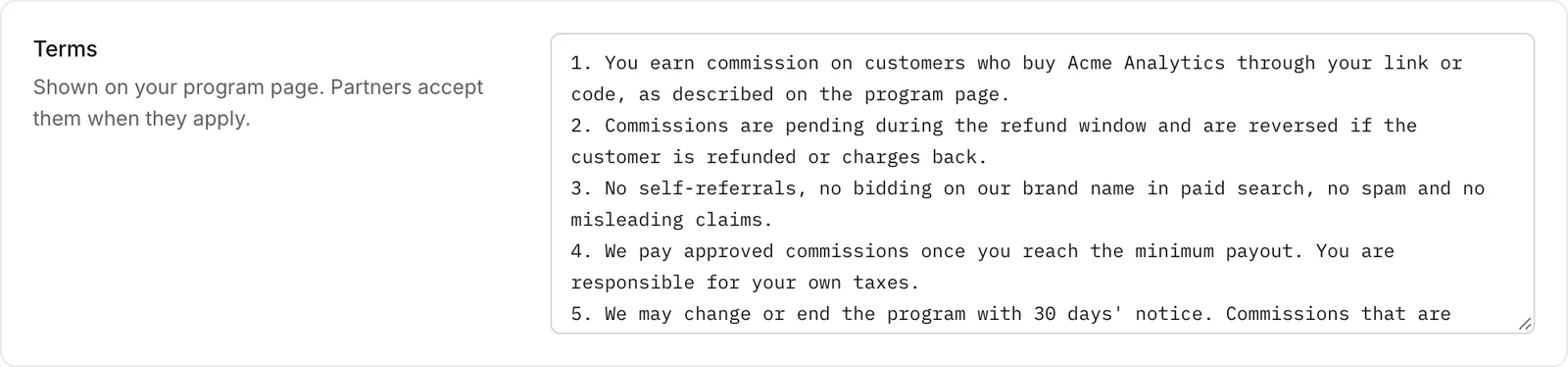
New programs start with five terms. They cover how commission is earned and reversed on refunds. They also ban self-referrals, brand bidding and spam, set the minimum payout and give 30 days' notice before changes.
Edit them to match your program and have them checked by your own counsel.
Good to know
- One network can send up to 10 applications an hour. This stops bulk sign-ups.
- Questions, auto-approve and visibility can change at any time. They apply to new applications only.
- The partner marketplace listing is a separate switch in Settings > Portal & domain. See Finding partners.
Next: Branding and portal