Commissions
Set what partners earn in OpenPromoter. Rate and type, duration, a lower rate for life, tiers, custom and product rates, lead rewards, two-tier overrides, customer discounts and refunds.
A commission is what a partner earns on a payment from a customer they referred. You set one program rate in Settings > Program, and tiers, product rates and custom rates can change it. This page covers every option, the order they apply in and what happens when a customer is refunded.
How to set your commission
- Open Settings > Program and find the Commission card.
- Pick a Type: Percent of each payment or Fixed amount per payment.
- Enter the Rate. It is a percent or an amount in your program currency.
- Pick a Duration. For Recurring for N months, enter Months.
- Click Save in the bar at the bottom of the page.
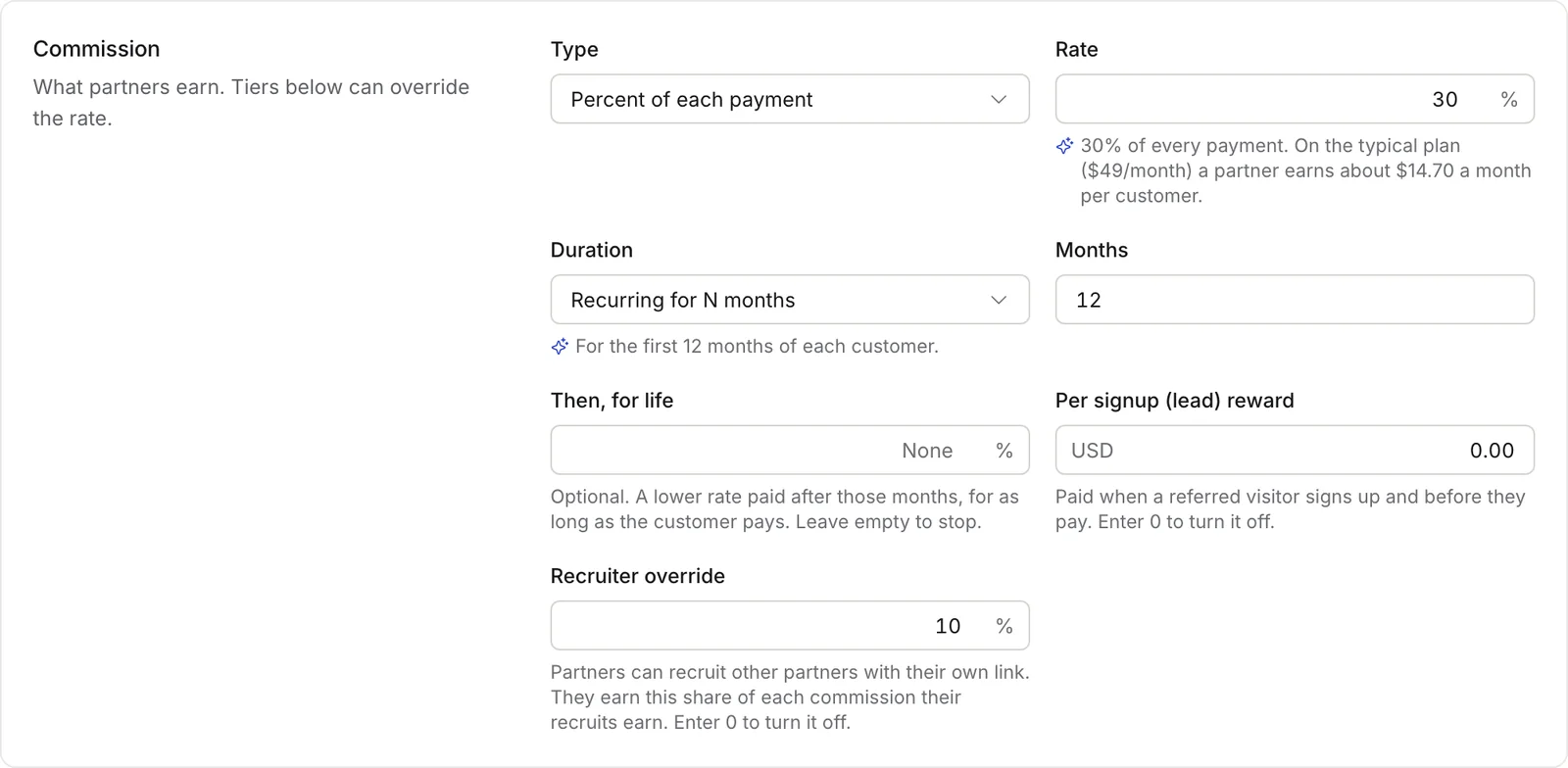
If you accepted the program design during setup, a short reason sits under each field it set.
Commission options
| Field | What it does | Default |
|---|---|---|
| Type | A percent of each payment or a fixed amount per payment | Percent |
| Rate | The program rate every partner earns unless something below replaces it | 30% |
| Duration | First payment only, Recurring for N months or Lifetime of the customer | Recurring |
| Months | How many months a customer earns commission, from 1 to 120 | 12 |
| Then, for life | A lower rate paid after those months | None |
| Per signup (lead) reward | A fixed amount for each referred signup | 0 (off) |
| Recruiter override | A recruiter's share of their recruits' commissions | 0% (off) |
The months count from the customer's first payment. The rate applies to what the customer paid after discounts and before tax.
Pay a lower rate for life
With Recurring for N months, you can keep paying a smaller share after the months end. Enter it in Then, for life and it is paid for as long as the customer pays. Leave it empty to stop paying when the months end.
For example, 30% for 12 months and then 10% for life. On a $49 plan the partner earns $14.70 a month for a year and $4.90 a month after that.
Tiers
Tiers give your best partners a higher rate. Partners move up on their own once their referred revenue crosses a threshold.
- On Settings > Program, find the Tiers card and click Add tier.
- Enter the Tier name, its Rate % and Promote at, the referred revenue that moves a partner into it.
- Click Add. To change a tier later, edit it and click Save.
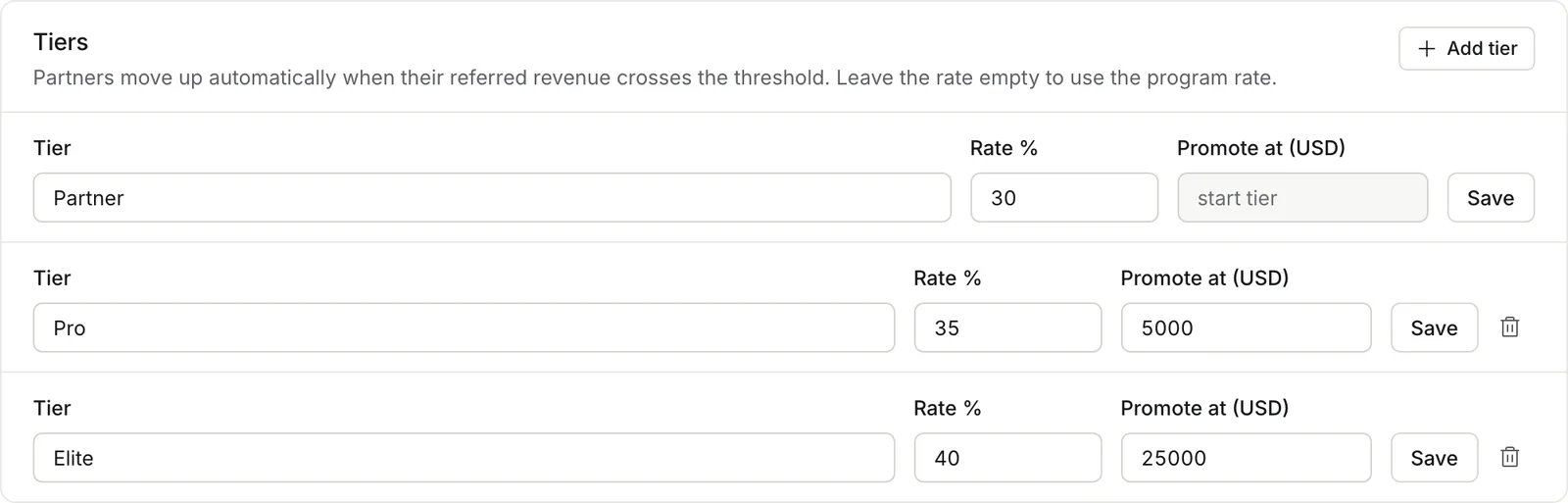
- Every program has a start tier that new partners join. It has no threshold and can't be deleted.
- Leave Rate % empty to use the program rate. Tier rates are always a percent of the payment.
- Leave Promote at empty for a tier you assign by hand on the partner's page.
- Promotion only moves partners up. A partner is never moved down on their own.
The proposed design during setup adds three tiers: Partner, Pro at +5 points after $5,000 and Elite at +10 points after $25,000.
Custom rate for one partner
Give one partner their own rate, for example a creator you signed a deal with.
- Open Partners and click the partner.
- In Tier and notes, enter Custom rate (%).
- Click Save.
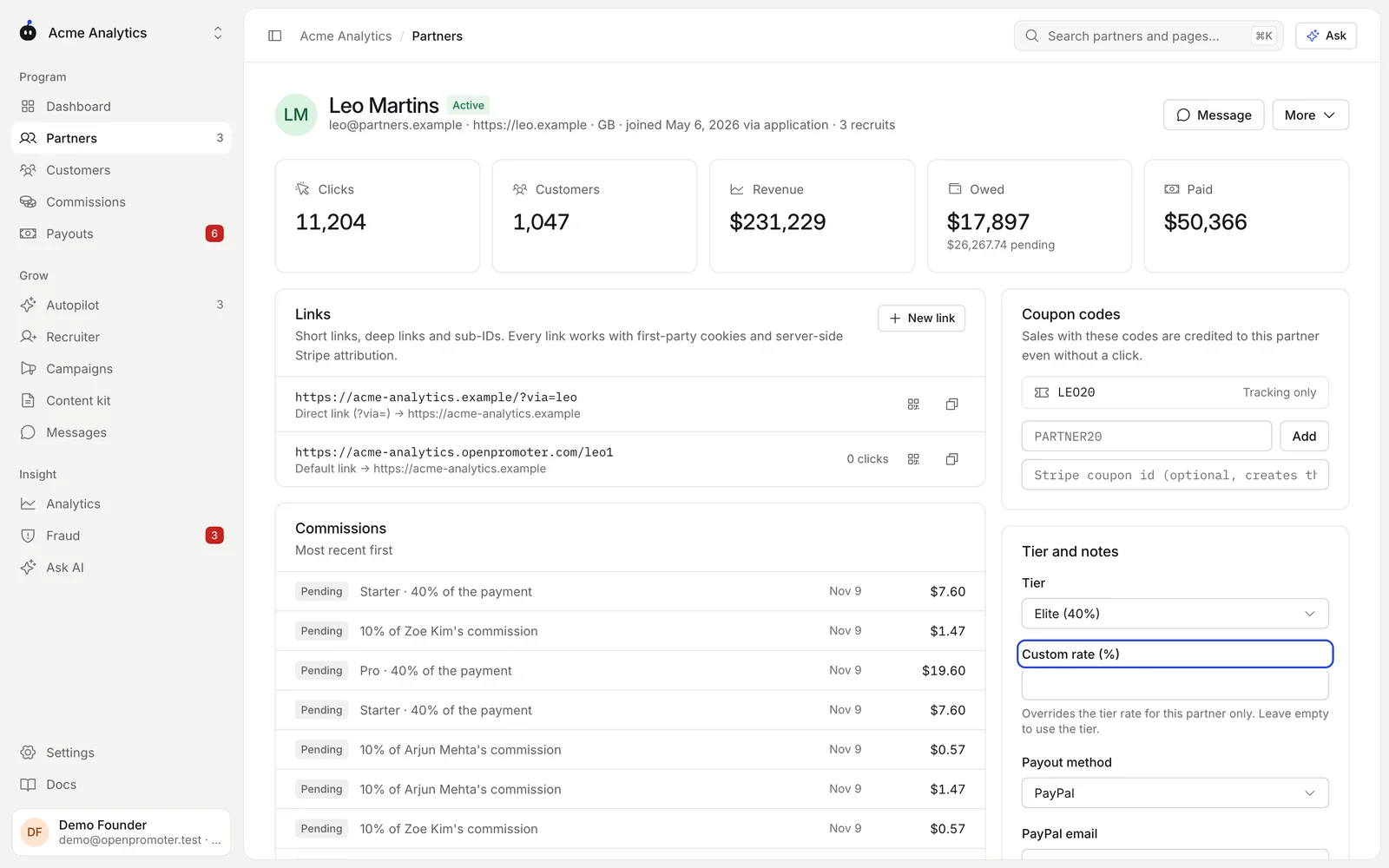
The custom rate replaces the tier and program rate for this partner only. It uses the program's type: a percent on a percent program and an amount on a fixed one. Clear the field to go back to the tier rate.
Product rates
Pay a different rate on one product, such as a lower share on an add-on or a higher one on an annual plan.
- On Settings > Program, find Product rates and click Add product rate.
- Pick one of your imported prices under Price. If none are listed, enter a price or product id from your billing provider.
- Pick a Type (Percent or Fixed amount) and enter the rate.
- Click Add.

- A rate on a price wins over a rate on its product.
- A program can have up to 100 product rates. A percent rate can be at most 100%.
- Product rates work with Stripe, Paddle, Lemon Squeezy, Polar and Chargebee.
Lead reward
Per signup (lead) reward pays a fixed amount when a referred visitor signs up, before they pay. Use it for a free plan or a long trial. Enter 0 to turn it off.
A lead reward goes only to approved partners and waits through the same refund hold. A signup reported by op.js in the browser is Held until you approve it, because anyone can fake one from a browser. Signups sent from your server through the API start as Pending.
Recruiter override (two-tier)
Partners can recruit other partners and earn a share of what their recruits earn. Turn it on with a Recruiter override above 0%.
- Each partner gets a recruit link on the Recruits page of their portal. Anyone who applies through it becomes their recruit.
- When a recruit earns a sale commission, the recruiter earns the override percent of it. A 10% override on a $30 commission is $3.
- The recruit's own commission doesn't change. You pay the override on top.
- It goes one level deep. A recruit's own recruits earn an override only for that recruit.
- Only an approved partner of the same program can recruit, and never themselves.
The override is its own line in the ledger. It follows the recruit's commission: it is held, released, reduced, reversed or clawed back with it. When a recruit looks like the recruiter's second account, the override is held and the recruiter is flagged.
Reward for the customer (double-sided)
Give referred customers a discount, which makes a partner's link easier to share.
- In Reward for the customer, enter the Discount percent and For months.
- Optionally enter the Stripe coupon id that gives this discount.
- Click Save.

The program page shows the discount as "Your audience gets 20% off for 3 mo", and the content kit mentions it.
There are two ways to apply it at checkout:
- Automatically with Stripe Checkout. Pass the coupon id to
stripeCheckoutParamsfrom the SDK. Every visitor who came through a partner gets the discount without typing a code. Settings > Install shows the code with your coupon id filled in. - With a code the customer types. Give each partner a coupon code built on that Stripe coupon on the partner's page under Coupon codes. See Tracking.
Cookie window and credit
The Tracking card on the same page sets how long a click counts and which partner gets the credit. See Tracking.

Which rate applies
When more than one rate could apply to a payment, the first match wins:
- A custom rate on the partner's page
- A product rate for the price or product
- The partner's tier rate
- The program rate
A running campaign boost then multiplies the result. If several boosts are live, only the strongest applies. See Campaigns.
Duration and months always come from the program. Then, for life follows only a rate of the program's type. A fixed product rate on a percent program stops when the months end.
Refunds and reversals
Refunds and chargebacks come from your billing provider and change the commission on their own.
| What happens | Before the payout | After the payout |
|---|---|---|
| Partial refund | The commission is reduced by the refunded share | A negative line comes off the next payout |
| Full refund | The commission is Reversed | The full amount comes off the next payout |
| Chargeback opened | The commission is Held | Nothing changes until it closes |
| Chargeback won | The commission goes back to Pending | Nothing changes |
| Chargeback lost | The commission is Reversed | The amount comes off the next payout |
Set the Refund hold in Settings > Program > Payouts to at least your refund window. Most refunds then land before any money moves. See Payouts.
Good to know
- Each commission has one source payment. A webhook delivered twice never books twice.
- Changing a rate affects new payments only. Commissions already booked keep their amount.
- On the Commissions page you can add a commission by hand. You can also approve, hold, release or reverse selected ones.
- Every change to these settings is written to the audit log.
Next: Application form